How to Upload an Audio-Only Podcast on YouTube (Step-by-Step Guide)

Quick Summary
This Cleanvoice article explains how to upload audio-only podcasts to YouTube using Cleanvoice’s Audio Visualizer. It highlights why expanding to YouTube matters for audience growth, outlines the simple conversion process, and shares optimization best practices.
You will learn how to boost visibility, engage new listeners, and explore more podcasting insights on our blog.
Want to Tap Into YouTube's 2 Billion Users With Audio Content?
You've built a great podcast with loyal listeners on Spotify, Apple Podcasts, and other audio-based platforms. But you're missing out on YouTube's massive audience of over 2 billion monthly users actively searching for content like yours.
Here's the challenge: YouTube won't accept raw audio files like MP3s or WAVs.
But there's an easy workaround that thousands of successful podcasters use every day. You can upload your audio-only podcast with simple, professional, and engaging visuals that perform well.
In this Cleanvoice guide, we'll show you exactly how to transform your audio podcast into YouTube-ready content that expands your reach and grows your audience.
Why Listen to Us?
At Cleanvoice, we've helped over 15,000 podcasters repurpose and distribute their content across multiple platforms. Our AI has processed millions of minutes of podcast audio, and we understand the strategies that drive multi-platform podcast growth.
This experience makes us qualified to teach you how to create engaging audio-only podcasts that attract and retain YouTube viewers.
What Is an Audio-Only Podcast on YouTube?
An audio-only podcast on YouTube is a podcast uploaded in video format but containing only audio content, often paired with a static image, waveform animation, or simple background visual. It allows podcasters to reach YouTube’s massive audience without recording video episodes.
This format works by converting your podcast’s audio file into a video file using tools like an audio visualizer, then uploading it to your YouTube channel.
It’s a simple way to expand reach, improve discoverability, and engage listeners who already consume long-form content on the platform.

Why Upload Your Audio Podcast to YouTube?
- Discoverability: YouTube has over 2 billion monthly users actively searching for content. Unlike traditional podcast apps where discovery can be limited, YouTube's search and recommendation algorithms can expose your podcast to audiences who've never heard of you.
- SEO Powerhouse: Google owns YouTube, which means your episodes can rank in both YouTube and Google search results. This doubles your discoverability compared to audio-only podcast platforms.
- New Audience Discovery: Many people prefer consuming content on YouTube rather than traditional podcast apps. Being on YouTube lets you reach listeners who might never find you otherwise.
- Monetization Opportunities: YouTube offers multiple revenue streams through the Partner Program, Super Thanks, channel memberships, and sponsorship opportunities that go beyond traditional podcast monetization.
- Enhanced Engagement: YouTube's comment section, likes, and shares create a vibrant community around your content. This engagement signals to YouTube's algorithm that your content is valuable, increasing its reach.
- Searchable Content: People use YouTube like a search engine for specific topics. When someone searches "how to start a podcast" or "best productivity tips," your episode can appear in results if properly optimized.
Preparing Your Podcast Audio for YouTube
YouTube only accepts video files, so you’ll need to convert your audio into a video format. This can be done by adding an audiogram, animated waveform, or a simple visual like your podcast artwork.
The process is easy, requires no video editing skills, and free browser-based tools can turn your audio into a YouTube-ready video in minutes.
How to Convert and Upload Your Audio-Only Podcast on YouTube (Step-by-Step)
To begin, convert your audio to a YouTube-compatible file. Cleanvoice's free Audio Visualizer lets you do this in minutes using the steps below:
Method 1: Using Cleanvoice's Audio Visualizer (Recommended)
Step 1: Prepare Your Podcast Audio File
Export your fully edited podcast episode in a supported format: MP3, WAV, OGG, FLAC, or similar. Ensure your audio is properly mixed and mastered because quality matters on YouTube, where audiences expect clear, professional sound.
Step 2: Visit Cleanvoice's Audio Visualizer
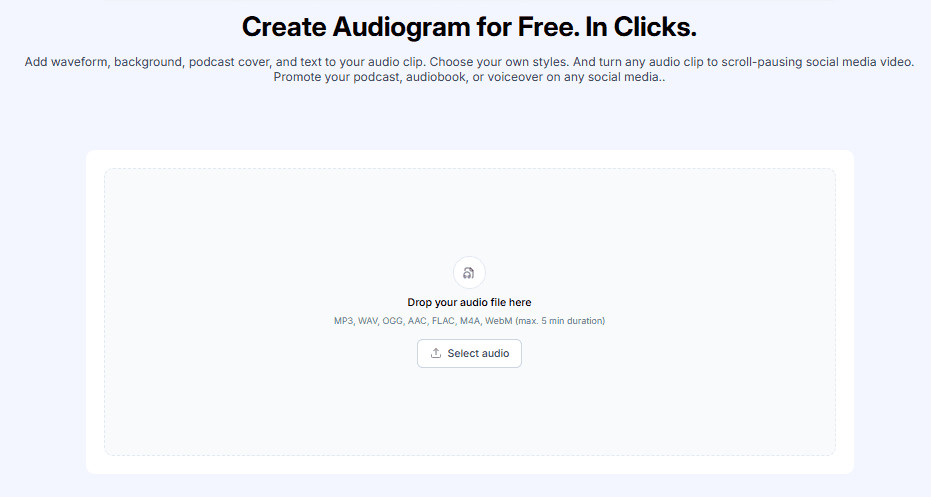
Go to the Cleanvoice Audio Visualizer page. It's 100% free to use with no sign-up, registration, or credit card required. The tool works directly in your browser, making it accessible from any device.
Step 3: Upload Your Audio File
Click the "Select audio" button or drag and drop your file into the upload box. The tool processes your entire episode, not just short clips. If your episode is very long and you want to test first, use the built-in trimmer to create a sample. Wait until the file completely uploads before moving to customization.
Step 4: Customize Your Visual Style
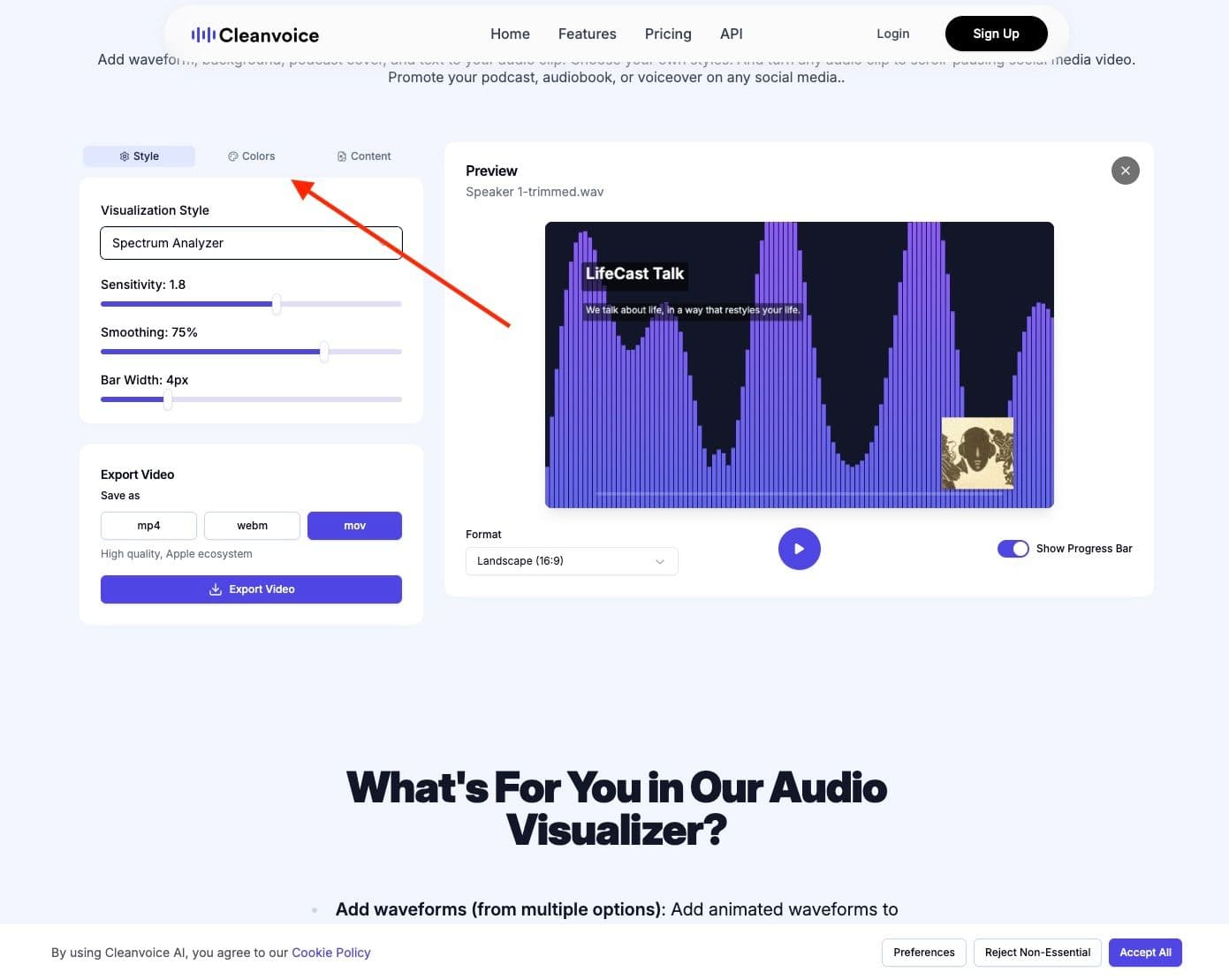
Now make your video visually compelling for YouTube viewers:
-
Styles: Choose from different visual formats that give your podcast a professional look:
- Spectrum Analyzer: Dynamic frequency bars that react to your audio
- Bar Graph: Clean, modern bars that pulse with your voice
- Waveform: Classic audio wave visualization
-
Colors: Match your podcast branding by selecting from preset color themes or inputting custom hex codes for exact brand colors. Consider using contrasting colors for better visibility on different devices.
-
Content: Add your branding elements:
- Upload your podcast cover art or logo
- Add episode title (make it clear and compelling)
- Include episode number or subtitle for organization
- Adjust text size for readability, especially on mobile devices
- Choose between left-side or center text layout based on your design preference
Use our guide to craft the perfect podcast description that complements your visuals.
Step 5: Preview and Adjust
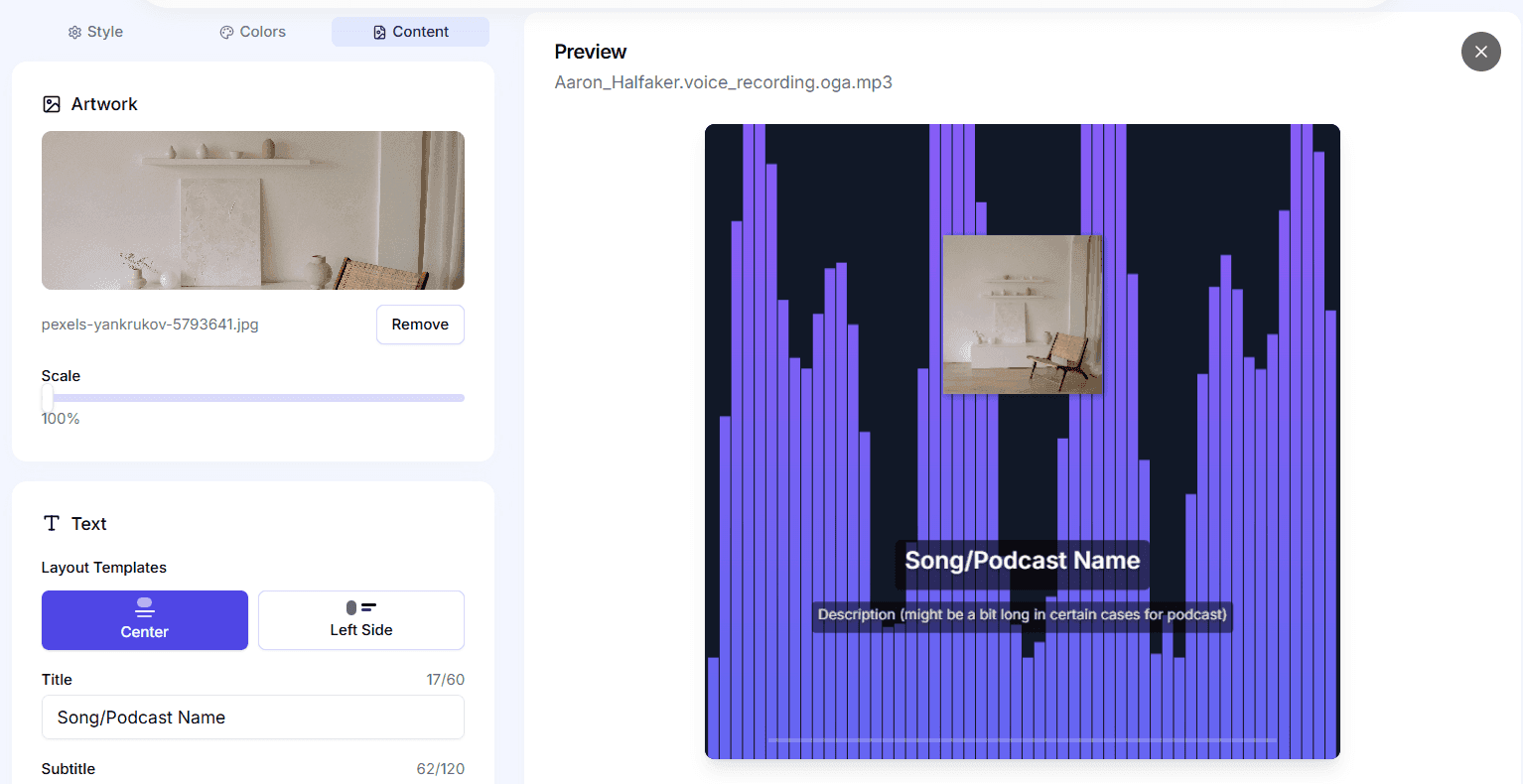
Click preview to see your video sample. Check that audio and visuals are perfectly synced, text is readable and doesn't overlap with artwork, and your branding looks professional.
Remember that most YouTube viewers watch on mobile, so test mobile readability and adjust font size, contrast, or positioning as needed.
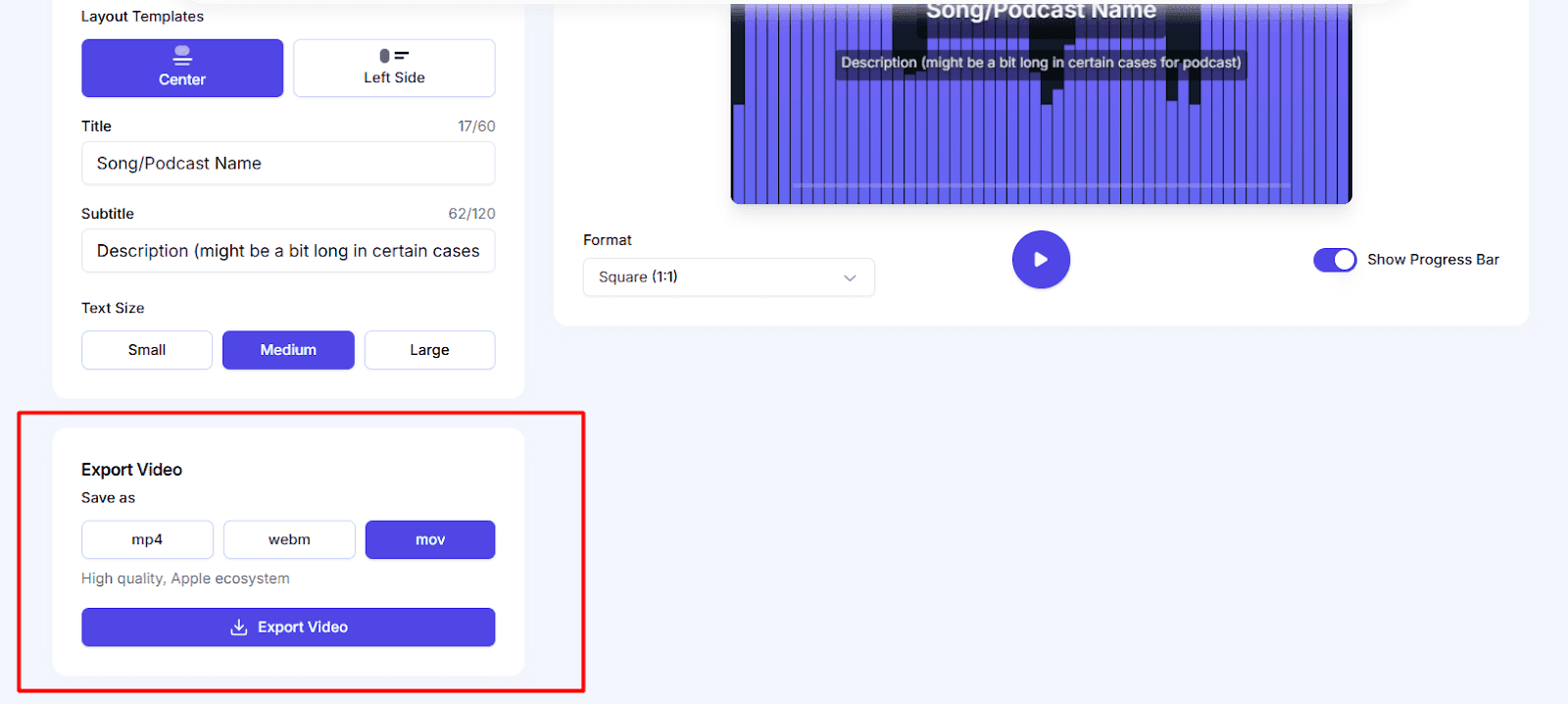
Step 6: Select YouTube-Optimized Format
Choose the Landscape (16
) aspect ratio, which is YouTube’s standard format. This ensures your video displays correctly on desktops, mobile devices, and TVs. If your tool allows, toggle the progress bar so viewers can see the timestamp. Do a final preview to confirm your audio, visuals, and timing appear correctly before uploading.Step 7: Export Your Video
Click export and download as MP4, which is YouTube's preferred format. The conversion happens in seconds, and your audio podcast is now a professional-looking video file ready for upload.
Method 2: Using VLC Media Player
If you prefer a traditional conversion method, VLC Media Player can be a handy tool. It’s not purpose-built for podcasters like Cleanvoice, but it includes built-in visualizations that react to your audio.
By combining VLC with a screen recorder, you can turn your podcast into a simple video for YouTube, no design software necessary.
Step 1: Install VLC Media Player
Visit the VideoLAN website to download and install the latest version of VLC Media Player on your computer.
Step 2: Upload Your Audio
Open VLC → click File (Mac) or Media (Windows) → Open File → select your audio.
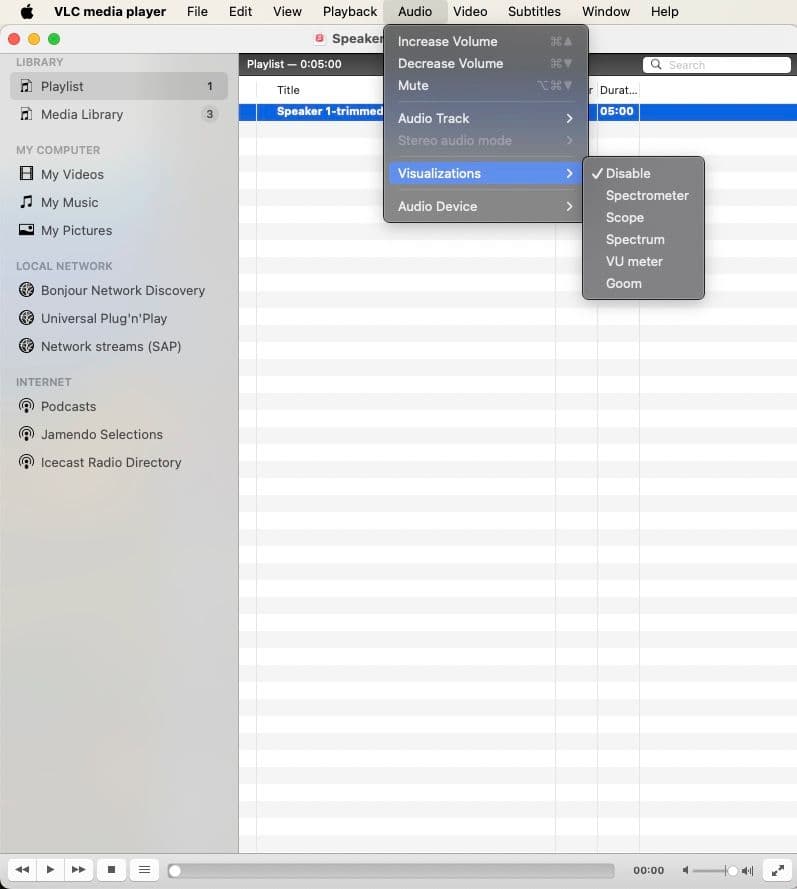
Step 3: Enable Audio Visualizations
On the menu bar, click Audio → Visualizations → choose a style. Press play to view the visualization in real time.
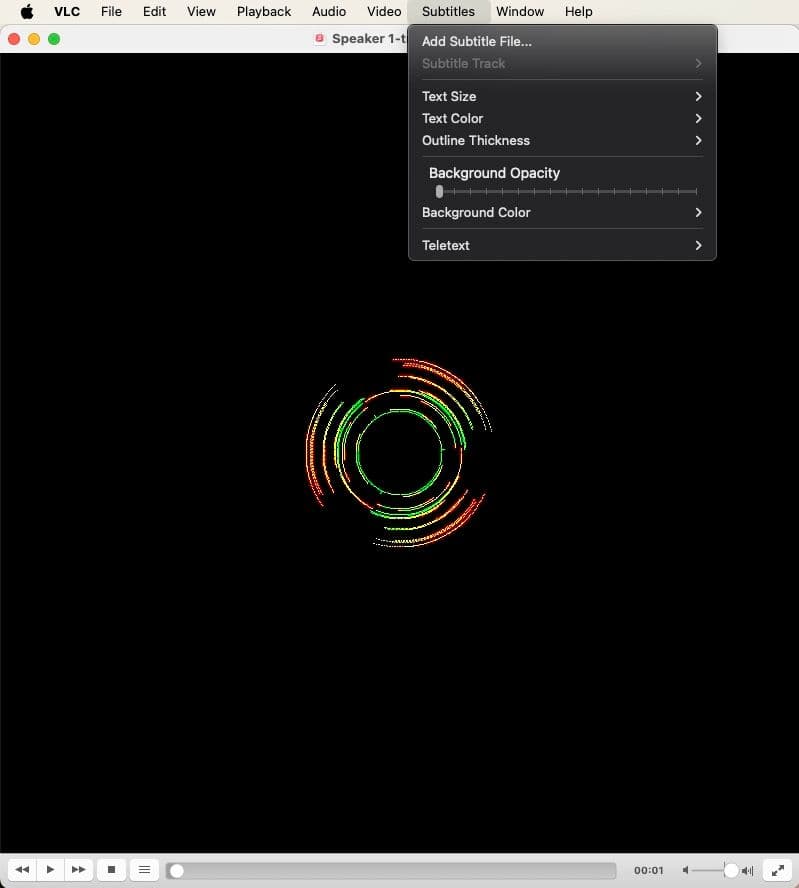
Step 4: Add Subtitles and Text
Use the Subtitle menu to add captions if available. Adjust text size and color for readability across all screen sizes and backgrounds.
Step 5: Set Up Screen Recording
Since VLC doesn’t export videos directly, use a screen recording tool (e.g., Loom, OBS Studio, or CapCut). Configure it to capture the VLC window.
Step 6: Record the Visualization
Start screen recording → play your audio in VLC → capture the visualization in real time → export the recording as MP4, and you’re set to upload on YouTube.
How to Upload Your Converted Audio Podcast File to YouTube
Now that you've converted your audio into video format, here's how to upload it to YouTube:
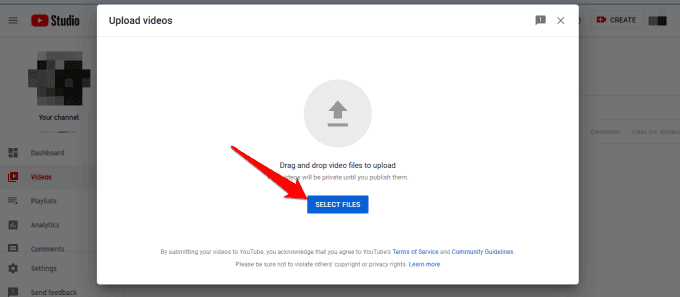
- Step 1: Log into YouTube Studio and click "Create," then "Upload videos."
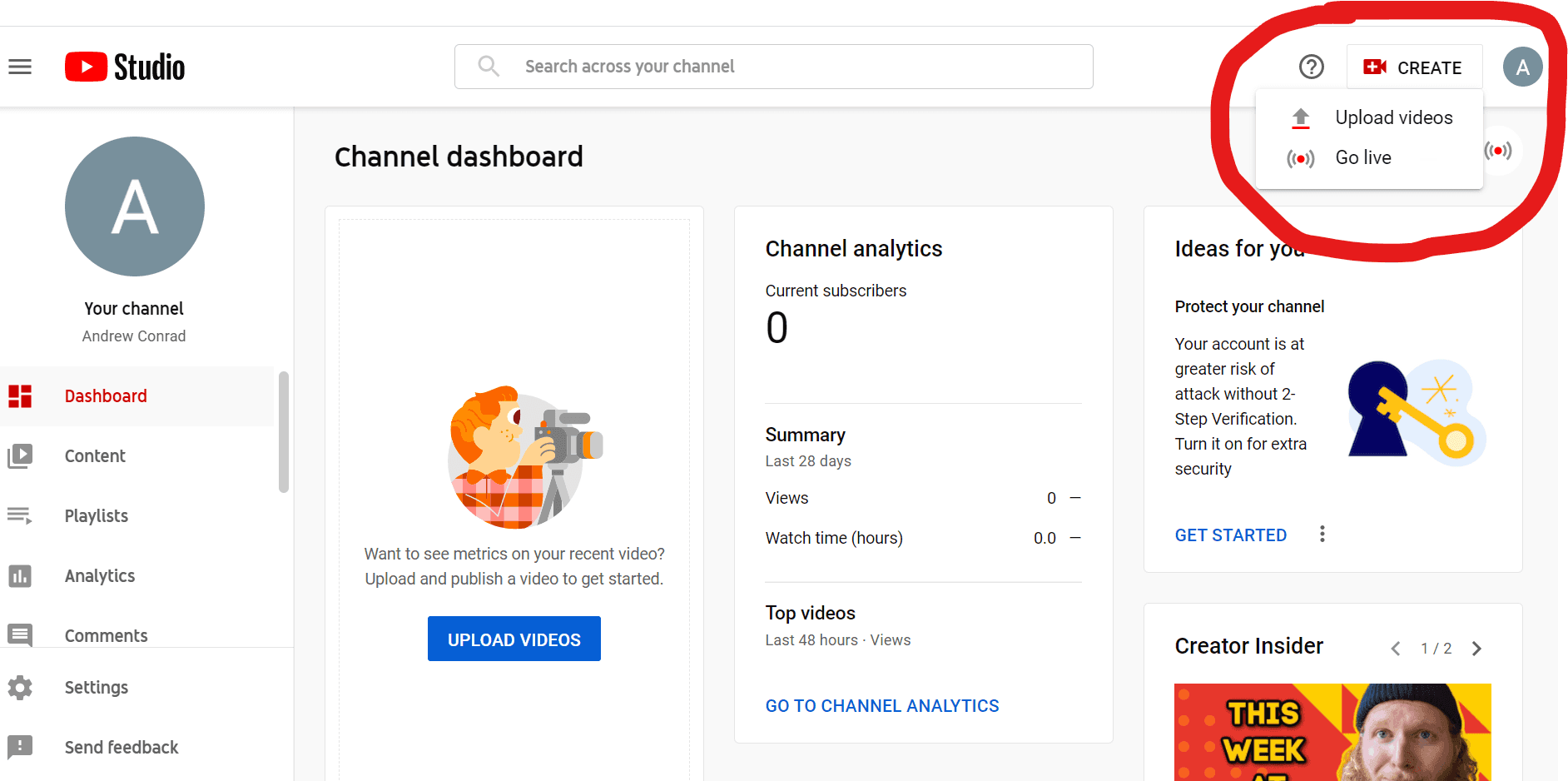
- Step 2: Drag your MP4 file into the upload area.
- Step 3: Write a compelling title with keywords in the first 60 characters. Include episode numbers or guest names.
- Step 4: Add a detailed description with timestamps, links to your podcast on other platforms, and resources mentioned.
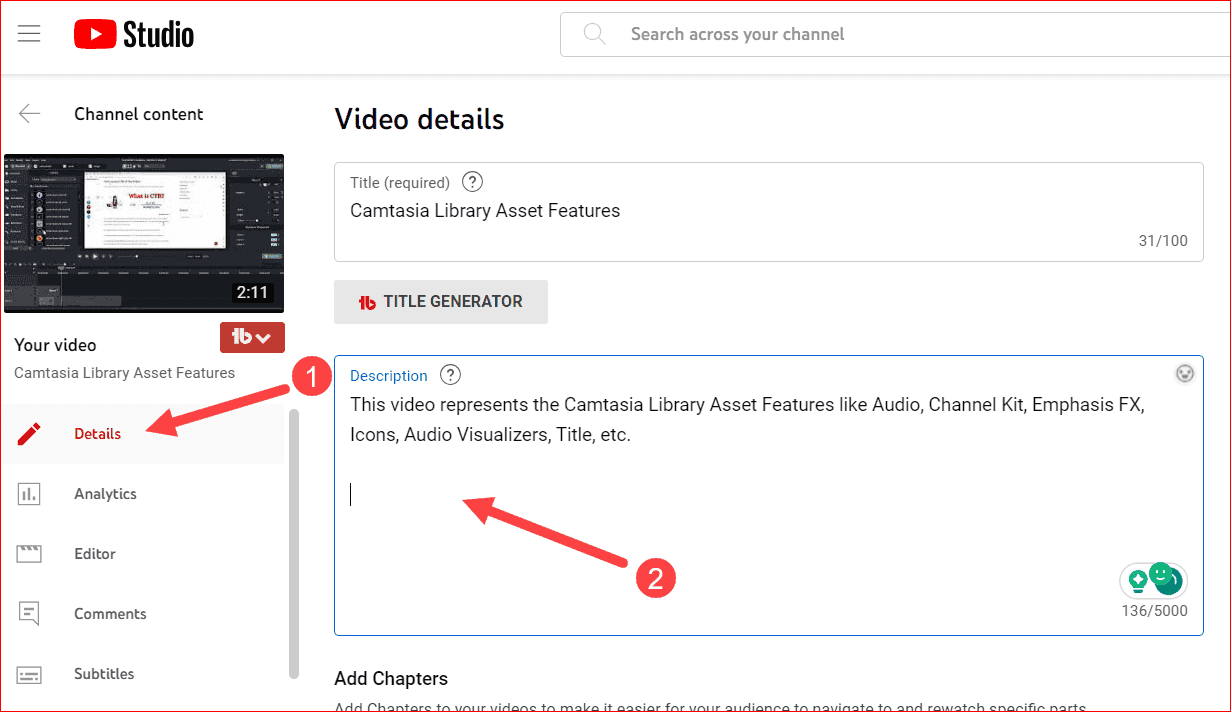
- Step 5: Include 8-15 relevant tags (podcast name, topics, keywords).
- Step 6: Upload a custom thumbnail (1280 x 720 pixels) with readable text and faces when possible.
- Step 7: Add your episode to a playlist and select the appropriate category.
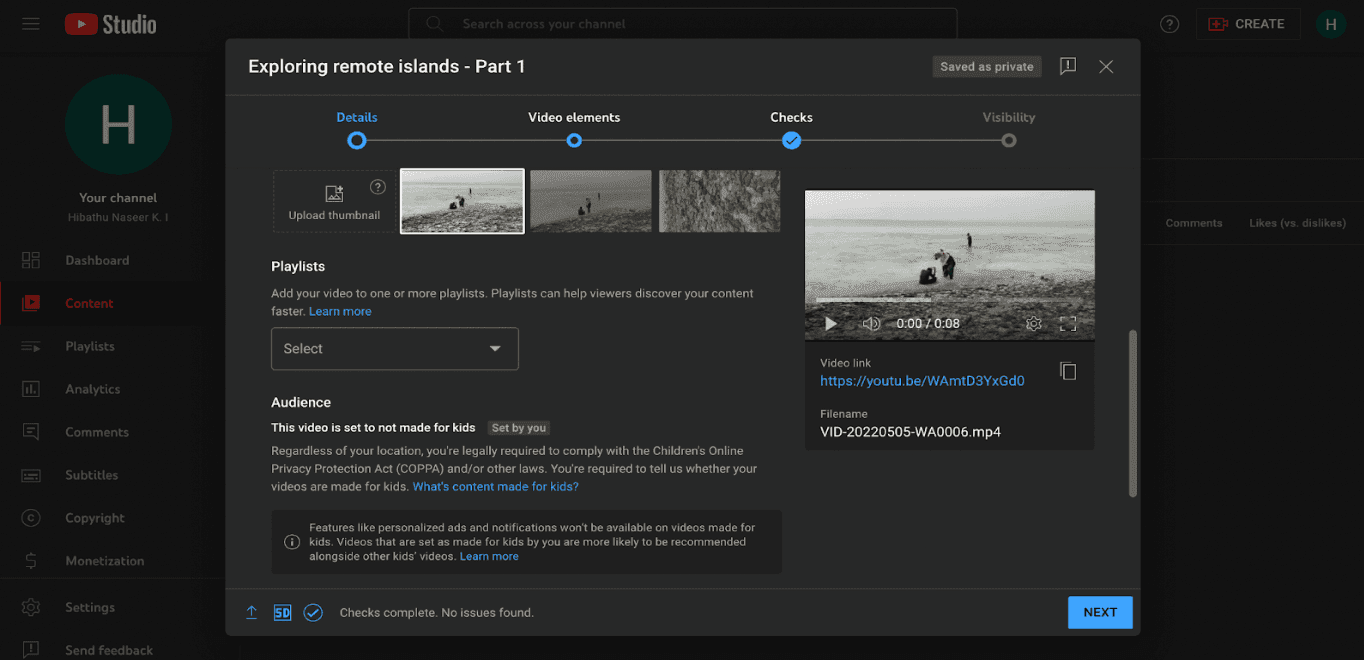
- Step 8: Enable captions.
Use Cleanvoice's transcription feature to generate error-free transcription of your audio or video. Just upload your file, select a template to create transcript and summary, and done.
You can use this summary and chapter markers for your YouTube Video Description as well.
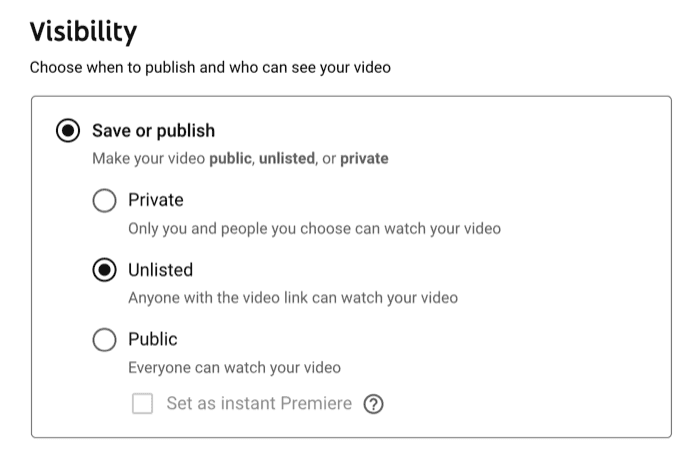
- Step 9: Choose visibility settings (Public, Scheduled, or Unlisted) and click "Publish." Your podcast is now live on YouTube.
Best Practices for Your Audio-Only Podcast on YouTube
- Optimize Titles: Include relevant keywords and episode numbers to boost discoverability and improve search rankings.
- Engaging Thumbnails: Use clear images, readable text, and consistent branding to attract viewers and encourage clicks.
- Use Timestamps: Break your episode into sections so viewers can easily navigate and find specific content.
- Add Captions: Enable accessibility and enhance SEO by providing accurate, readable transcriptions.
- Promote Across Platforms: Share your YouTube episodes on social media, newsletters, and other podcast apps to maximize reach.
Expand Your Podcast Reach with YouTube
YouTube represents a massive, largely untapped opportunity for audio podcasters. You don't need video equipment or complicated software, just your audio content and smart tools that make conversion simple.
Cleanvoice transforms your podcast into professional-looking YouTube videos in minutes, not hours. Combined with proper optimization strategies, YouTube can dramatically expand your reach and introduce your podcast to millions of potential listeners actively searching for content like yours.
Ready to grow your audience? Try Cleanvoice's Audio Visualizer today, it's completely free.
For full podcast editing features that make your audio sound even better, sign up for Cleanvoice.