Here’s How to Edit Voice Recording (We Share Two Methods)
Quick Summary
Learn how to edit voice recordings quickly and professionally using two methods: Cleanvoice’s AI-powered editor for automatic filler, noise, and stutter removal with studio-quality enhancement, and Lexis Audio Editor for hands-on mobile editing.
Trim, merge, adjust volume, and export your podcasts, voiceovers, or meetings efficiently.
Not Sure How to Edit a Voice Recording?
A raw voice recording almost always needs a little polish. Even great speakers pause to think, rooms create background hum, and microphones capture mouth clicks you never noticed while recording. Once that audio is shared publicly, those small distractions become much more noticeable.
In this Cleanvoice guide, you’ll learn how to edit a voice recording quickly, consistently, and with minimal effort.
We’ll cover two practical methods, perfect for podcasts, voiceovers, or meeting recordings, whether you prefer AI-powered tools or hands-on mobile editing.
But first...
Why Listen to Us?
At Cleanvoice, our AI-powered app helps 15,000+ podcasters and top brands streamline their audio editing. With years of experience in podcast and voice recording optimization, we’ve seen what works and what doesn’t.
This expertise allows us to confidently guide you on the best ways to refine and enhance your recordings for professional-quality results.
Why Editing Voice Recordings Matters
- Improves Clarity and Comprehension: Editing enhances speech clarity, balances volume, and removes distractions, making your message easier to understand and more enjoyable to listen to.
- Preserves Engagement and Credibility: Clean audio keeps listeners focused. Removing "ums," long pauses, and subtle mouth noises shows credibility and respects your audience’s time.
- Turns Raw Content into Valuable Assets: Edited recordings can be repurposed into show notes, social clips, blogs, and newsletters, maximizing the impact of every session.
- Ensures Consistency and Quality: Consistent audio quality across episodes builds a strong, professional brand identity.
- Future-Proofs Your Audio: High-quality recordings meet platform standards, whether for podcasts, social media, or video apps, without expensive equipment.
How to Edit a Voice Recording (Step-by-Step)
Method 1: Using Cleanvoice (Best Overall)
Cleanvoice lets you edit voice recordings quickly and professionally without the hassle of complicated apps. Our AI intelligently removes filler words, long pauses, breaths, background noise, and more, while enhancing your voice to studio-quality sound.
You can also trim recordings, merge multiple files, adjust and visualize your audio, all within a seamless workflow. Cleanvoice works perfectly on both desktop and mobile, so you can edit your recordings anytime, anywhere.
- Here’s how it works:
Step 1: Prepare Your Voice Recording
- Make sure your recording is saved on your device, Google Drive, or hosted online.
- Check that it’s complete, clear, and ready for editing.
Step 2: Sign Up or Log In to Cleanvoice
- Sign up to Cleanvoice for free. You will get 30 minutes of free credits to try each feature.
- Once registered or logged in, access the Cleanvoice dashboard.


Step 3: Upload Your Voice File
- Select where your recording is stored: Device, Web Link, Google Drive, or Record Audio.
- For this tutorial, we’ll select a recording saved on the device.
- Click Upload File. You can upload multiple files using the “+” button. Cleanvoice supports bulk editing.

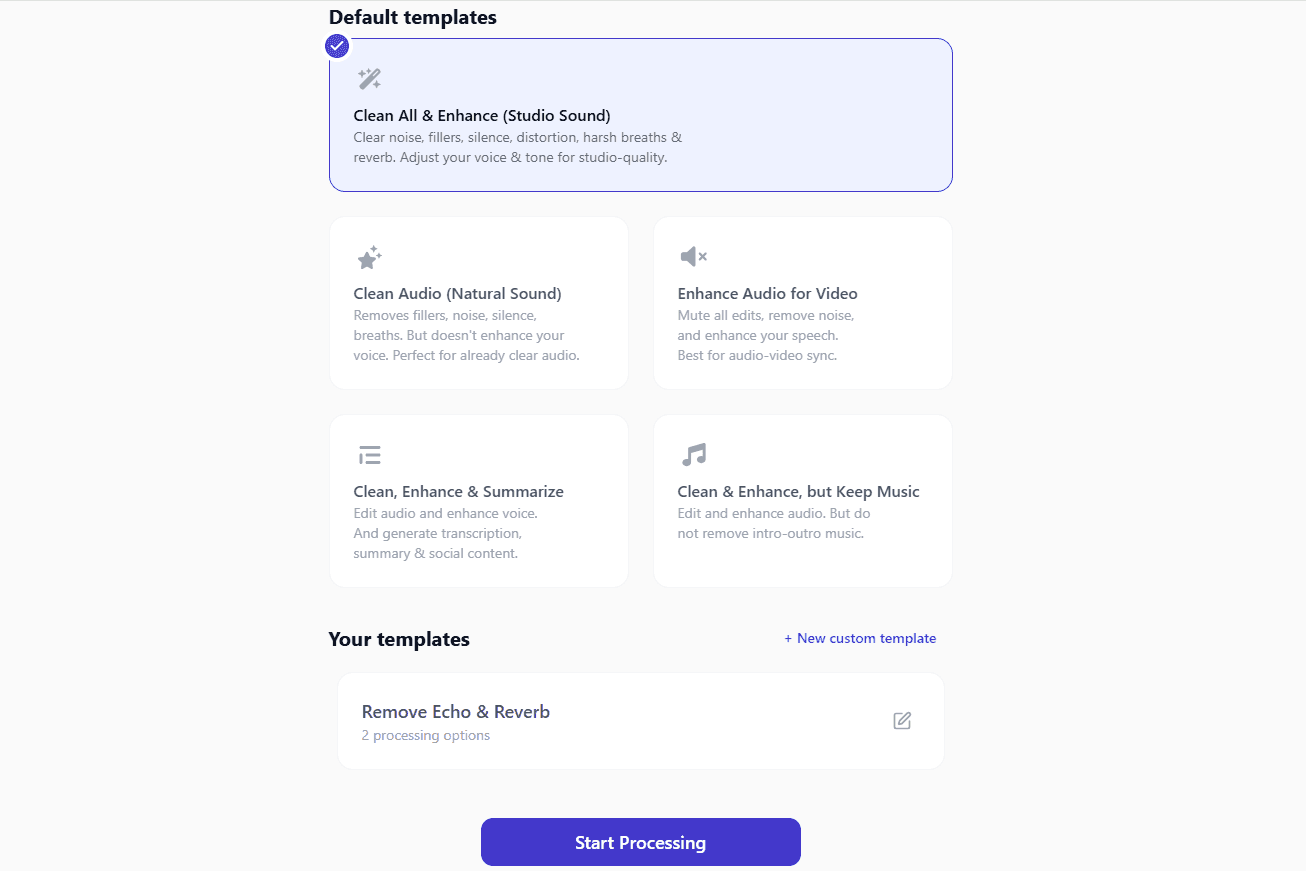
Step 4: Choose a Default or Custom Template
Cleanvoice offers ready-made editing templates to save time:
- Default Templates:
- Clean All & Enhance (Studio Sound): Removes noise, fillers, silence, distortion, harsh breaths, and reverb. Enhances your voice for studio-quality results. (Recommended for most users)
-
Clean Audio (Natural Sound): Removes fillers, noise, silence, and breaths but doesn’t enhance the voice. Ideal for already clear recordings.
-
Enhance Audio for Video: Mutes edits, removes noise, and improves speech clarity for synced audio-video recordings.
-
Clean, Enhance & Summarize: Clean audio, enhance voice, and generate transcription, summary, and social content.
-
Clean & Enhance, but Keep Music: Edit audio while preserving intro/outro music.
-
Custom Template: If none of the defaults match your needs, scroll down and click “+ New Template”. You can mix and match editing options:
-
Edit: Mute sections, remove hesitations, long silences, etc.
-
Enhance: Apply Studio Sound, normalize volume, remove breaths, keep music, etc.
-
Export: Generate transcription, summaries, or social content; select file format, etc.
-
Give your custom template a name and click Save Template.
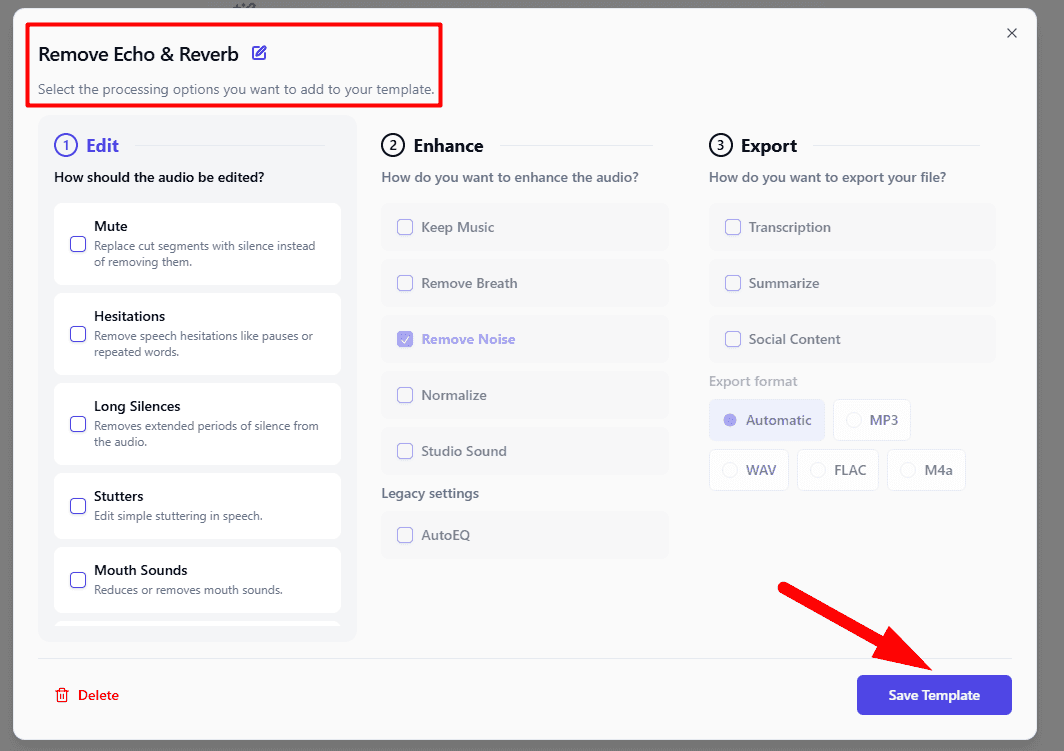
- Now, select your chosen template (default or custom). And click “Start Processing”.

Your voice recording will process for a few seconds or minutes depending on file size. Monitor progress via the visible progress bar.
Step 5: Review & Download
- Once processing is complete, a report dashboard shows:
- Number of filler words, stutters, breaths, and dead air removed
- Playback preview and toggle to compare original vs. edited recording

- Satisfied with the edits? Click Download Audio to save the recording to your device.
- Or use Export Options to save in formats compatible with Audacity, Adobe Audition or Reaper.
Trim Your Voice Recording
Cleanvoice also offers a 100% free audio trimmer you can use directly in your browser; no account required.
- Still on your browser, visit: https://cleanvoice.ai/audio-trimmer/

- Click Select Audio and choose your voice recording from your device.
- Once uploaded, the interface switches to an audio timeline.
- Drag the left or right handles to trim the start or end of your recording.
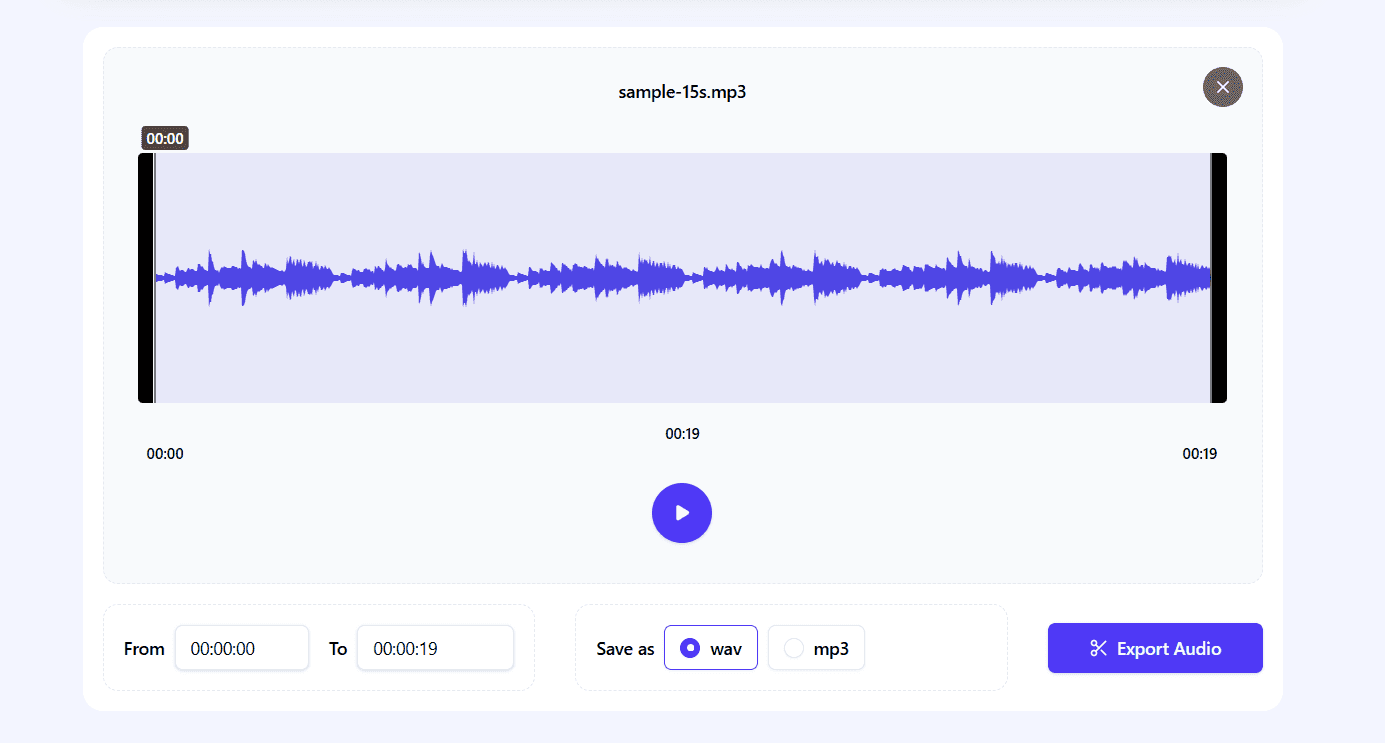
- Alternatively, fine-tune your trim by adjusting the "From" and "To" timestamps.
- Play the audio to preview your trim.
- Choose an export format (MP3 or WAV) and click Export Audio to download.
Combine/Merge Multiple Voice Recordings
Need to merge multiple voice recordings, intros, or outros? Cleanvoice makes this easy. Again, no sign-up required.
- On your browser go to: https://cleanvoice.ai/merge-audio/
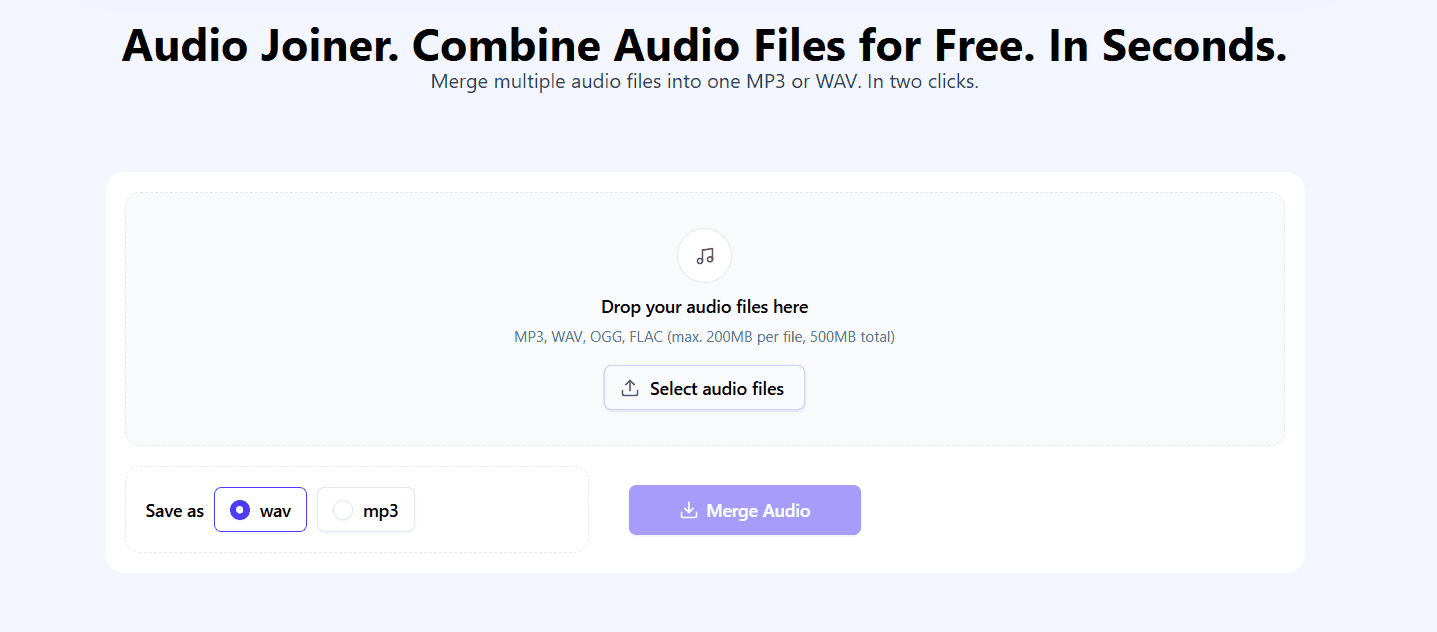
- Click Select Audio Files and upload the recordings you want to combine.
- After upload, each file appears as a stacked timeline.
- Drag timelines above or below each other to control the order of your final audio.

- Select your export format and click Merge Audio.
- Your merged file will process and download shortly.
Adjust Volume of Your Recording
Need to boost or balance the volume of your voice recording? Cleanvoice's free volume changer lets you do it instantly, no account required.
- Open your browser and visit: https://cleanvoice.ai/audio-volume/

- Click Select Audio and choose your voice recording from your device (accepts MP3, WAV, OGG, FLAC up to 500MB).
- Once uploaded, the interface switches to an audio timeline.
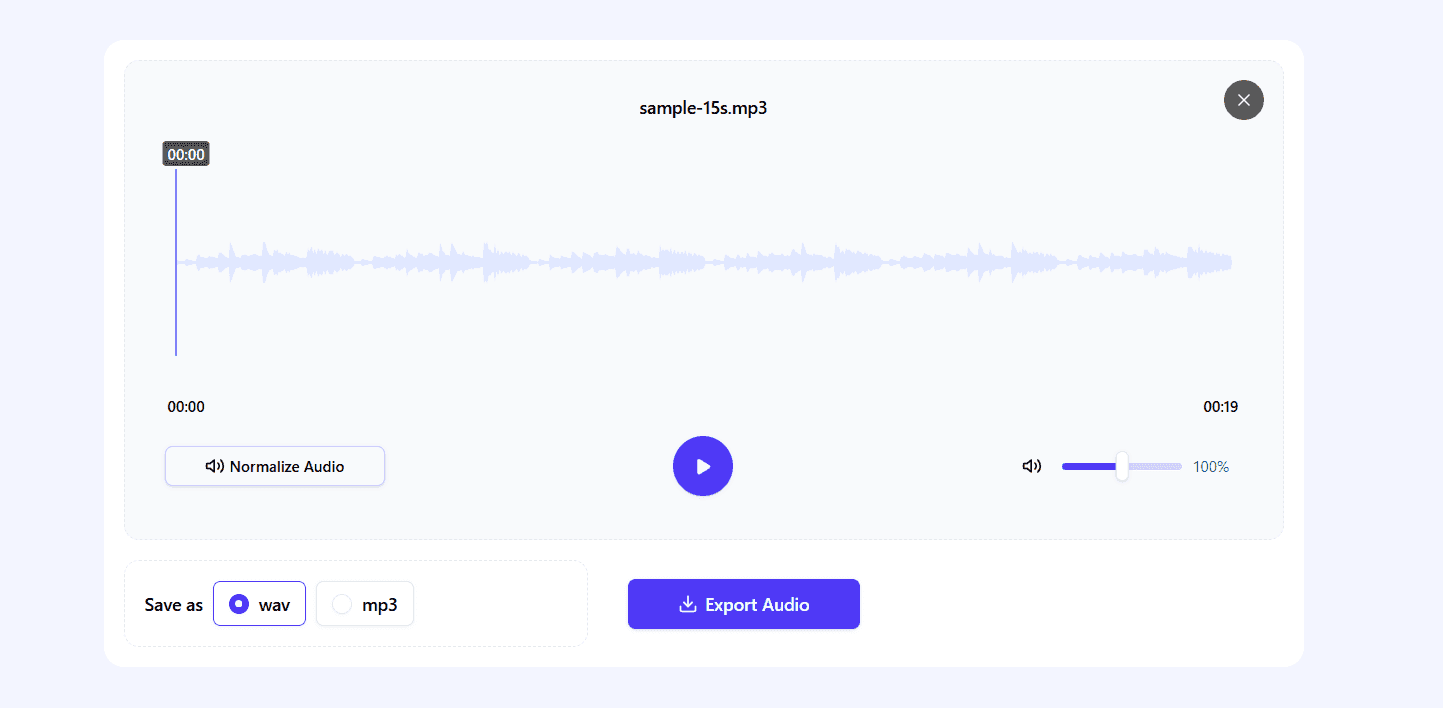
- On the left, you'll see a "Normalize Audio" button. Click it to reveal 3 options:
- Peak Normalization: Maximize volume without distortion
- Podcast Standard: Industry standard for podcasts
- Custom LUFS Target: Set your own LUFS target value
- On the right, use the volume control slider to adjust the volume of your recording up to 200%.
- Make the necessary changes, then play the voice recording to preview.
- Choose an export format (MP3 or WAV) and click Export Audio to download.
See our comparison of the WAV vs. MP3 audio format.
Visualize Your Recording
You can also create a free, shareable visual of your voice recording. Here’s how to do it:
- Visit https://cleanvoice.ai/audio-visualizer/ and click Select Audio or drag your file in (max length: 5 minutes).

- Longer clips will prompt you to trim using the built-in trimmer.
- Customize your visual:

- Styles: Spectrum Analyzer, Bar Graph, Waveform, etc.
- Colors: Choose presets or custom hex codes
- Content: Add artwork/logo, layout, short title, subtitle, and text size for mobile readability
- Preview your clip, ensuring text, visuals, and audio are in sync. Adjust font size and contrast for mobile visibility.

- Choose your export format:
- Portrait (9) for TikTok/Instagram Reels
- Square (1) for Instagram Feed
- Landscape (16) for YouTube
- Click Export to download your visualized audio as MP4, WebM, or MOV, ready to share.
Method 2: Using Lexis Audio Editor (Mobile App Option)
If you don’t mind downloading a third-party app, Lexis Audio Editor is a workable option for editing voice recordings on mobile. It offers trimming, mixing, and audio effects directly on your phone. While Cleanvoice works smoothly on mobile without any app installs, this method may suit users who prefer offline, manual editing.
Here’s how it works:
Step 1: Prepare Your Voice Recording
- Make sure your voice recording is saved on your device.
- Check that the file is complete and ready for editing.
Step 2: Download the Lexis Audio Editor App
- Open your phone's app store (Google Play Store for Android or App Store for iOS).
- Search for "Lexis Audio Editor" and download the app.

- For this tutorial, we'll be using an Android device, but the steps are similar on iOS.
Step 3: Open the App and Import Your Recording
- Launch the app. You’ll see the Lexis Audio Editor interface (usually in landscape mode).

- Tap Open at the top.
- Navigate to the folder containing your voice recording and select the file.
- The recording will load into the timeline.
Step 4: Trim Your Voice Recording
To trim your recording:
- Move the left and right pin markers on the timeline to set start and end points.
- Tap the three-dot menu (top right)
- Cut: removes the selected area between the pins.
- Trim (Inverse Delete): removes everything outside the selected area.

Tip: Most editing settings are hidden behind the 3-dot menu icon.
Step 5: Merge or Mix Multiple Selection
- Select the area you want to work with using the pin markers.
- Tap the three-dot menu and choose Import/Mix.
Here are your options:

- Export the selection: saves the selected area as a separate file.
- Import from file: adds a new recording to the selected area, replacing the existing audio.
- Mix with another file: layers a new file on top of your current recording within the selected area.
Note: Editing options are disabled while your recording is playing or paused. Click the Stop button first to make changes.
Step 6: Record Audio Over Your Recording
You can record audio directly over an existing section:
- Set the start and end positions on the timeline with the pin markers.
- Tap the yellow Record button. Do not use the red button, which starts a new recording project.

- The new audio will insert within the selected range, replacing the old sound.
Step 7: Apply Audio Effects
Open the three-dot menu to access effects such as:
- Fade in / Fade out
- Normalize
- Noise reduction
- Change pitch
- Echo
- Reverb
Click on any effect based on your requirement.
For example, Noise Reduction opens a preview with sliders to control threshold and low-pass filters.

Note: Effects usually apply only within the pin-marked area. Adjust the pins carefully.
Click the green play button to preview your changes
Step 8: Adjust Volume
- At the top, just above the timeline, you can adjust the volume of your recording by up to +20dB.
Step 9: Save Your Edited Recording
- Click the Save icon at the top right (beside Open).

- Enter your desired file name.
- Choose the file format from the dropdown menu.
- Tap the "Save" button.
Note: Saving edited files in MP3 format is only available in the paid version. However, you can save your file in other audio formats like .wav, .m4a, etc.
Streamline Your Voice Recording Edits Using Cleanvoice
Raw recordings can be messy, filled with pauses, “ums,” clicks, and background noise. Even the best speakers can’t avoid small distractions, and polishing audio manually takes time, focus, and patience.
Cleanvoice makes voice recording edits fast and effortless. Its AI removes filler words, stutters, mouth clicks, long pauses, and background noise while enhancing your audio to studio-quality sound. You can trim, merge, adjust volume, and even visualize your recordings, all without complicated software. Whether you’re editing podcasts, voiceovers, or meeting recordings, Cleanvoice handles the heavy lifting.
Get started with Cleanvoice today. It’s FREE.