Our Step-by-Step Guide on How to Record a Podcast on Your Phone (iPhone+Android)
Quick Summary
Learn how to record a podcast on your phone using simple, effective methods for both iPhone and Android. Our guide covers everything, from selecting the best recording apps to optimizing your setup and editing your audio. With Cleanvoice’s AI-powered tools, you can streamline post-production and ensure your podcast sounds polished and professional, all from your phone. Explore more on our blog.
Want to Create Professional Podcasts Using Just Your Phone?
Recording a podcast on your phone is easier than you think. Doesn’t matter if you're a seasoned podcaster or just starting, your phone can become a powerful tool for high-quality audio.
At Cleanvoice, we know that great sound is key. In this guide, we’ll show you how to get the best results from your phone, whether you’re using an iPhone or Android. With a few simple tips, you’ll be recording like a pro in no time.
Why Listen to Us?
At Cleanvoice, we’re trusted by over 15,000 podcasters for our AI-driven audio and podcast editing tools. Our platform effectively removes background noise, filler words, reverb, breaths, and unwanted sounds, while also integrating with tools like Make.com.
Many users appreciate its user-friendly interface and support for multiple languages. These features help creators without much audio editing experience produce cleaner podcast files.
Can You Record a Podcast on Your Phone?
Yes, you can. Both iPhone and Android devices have high-quality built-in microphones, making them capable of recording clear audio.
There are several apps available, like GarageBand for iPhone or Easy Voice Recorder for Android, that allow for easy recording and editing.
To enhance your sound, Cleanvoice can remove background noise, filler words, stutters, reverb, breaths, and other unwanted sounds. This lets you achieve professional-quality audio directly from your mobile device, making it easy for you to create content on the go.
Why Is Recording a Podcast on Your Phone Worth Trying?
- Portability: Your phone is always with you, so you can record anytime, anywhere, without needing extra equipment.
- Cost-effective: No need for expensive microphones or audio interfaces. Your phone’s built-in mic is good enough for quality recordings.
- Convenience: Many apps, like GarageBand or Easy Voice Recorder, are easy to use and perfect for quick recordings.
- Quick editing: With built-in editing tools, you can trim and enhance your audio on the spot.
How to Record a Podcast on Your Phone (iPhone+Android)
Method 1: Recording a Podcast on Your iPhone
Choose a Recording App
Selecting the right recording app sets the foundation for your podcast. GarageBand and Ferrite Recording Studio are top picks for iPhone users that offer exclusive features like. These apps let you record high-quality audio and edit directly on your phone.

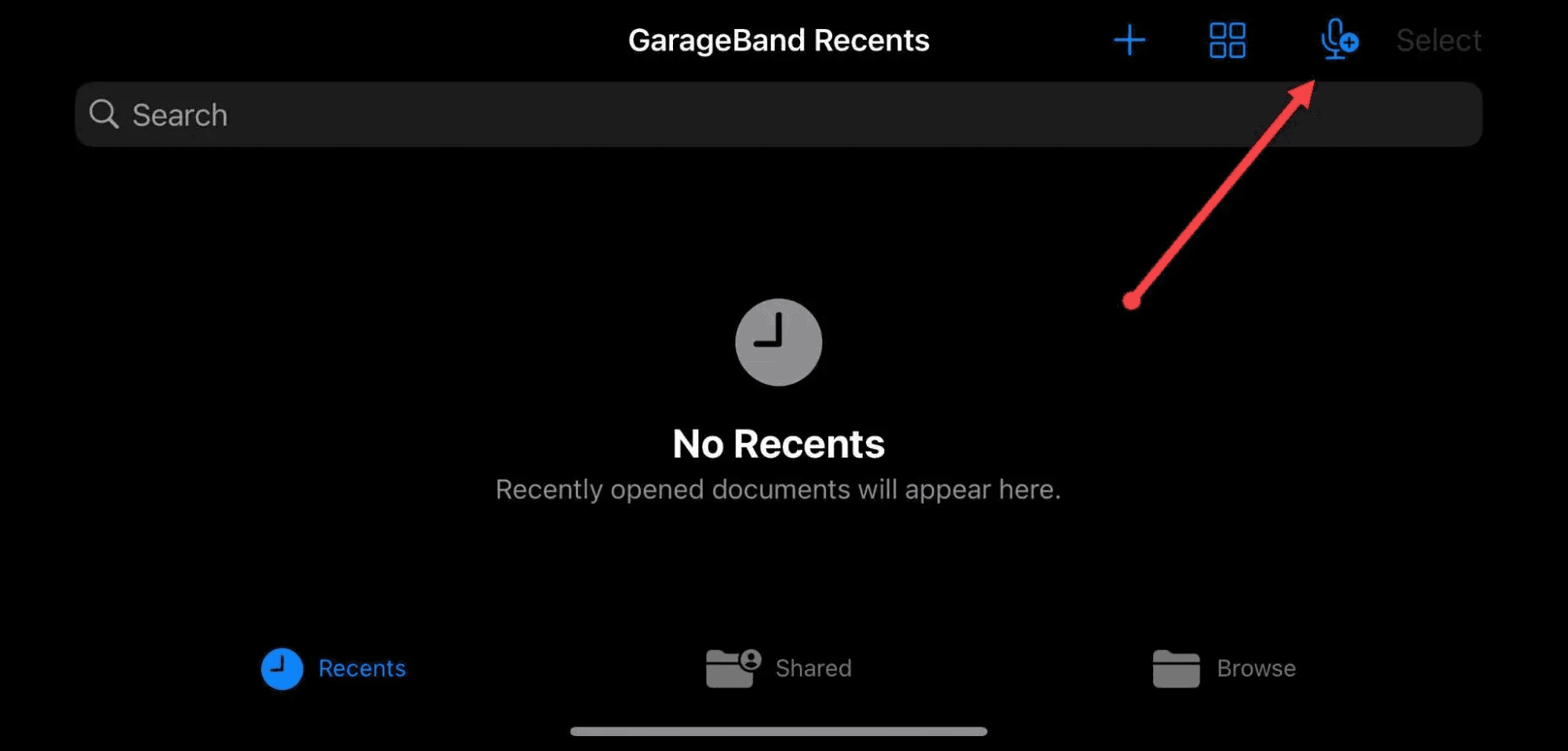
GarageBand is best for multi-track editing and built-in effects, while Ferrite Recording Studios is tailored for journalists and podcasters with advanced automation.
- Key features to look for:
- Easy editing tools: Trim, cut, and enhance audio within the app.
- Multi-track recording: Ideal for interviews or group podcasts.
- Seamless export options: Directly upload your audio to hosting platforms.
A reliable app provides a smoother recording process, saving you time in post-production.
Set Up Your Recording Space
The environment you record in plays a key role in audio quality. Choose a quiet, controlled space with minimal background noise.
- Avoid echo: Soft materials like carpets, curtains, or cushions help absorb sound.
- Maintain distance: Keep a consistent distance from your mic to avoid fluctuating audio levels.
- Minimize interruptions: Keep your space free of distractions that could disrupt your recording.
Taking time to set up a good recording environment leads to cleaner, more professional audio. Cleanvoice can enhance this by removing any lingering background noise in post-production.
Connect an External Microphone (Optional)
For higher sound quality, consider using an external microphone. While iPhone’s built-in mic is adequate, a high-quality external mic, like the Shure MV88, Apogee MiC Plus, or Rode VideoMic Me-L, significantly improves clarity.
This is especially important if you’re recording in a less controlled environment, to make sure that your voice is captured crisply without background interference. You can also go for:
- Lavalier mics: Compact and clip on for hands-free recording.
- USB mics: Provide rich, clear audio for more professional setups (like Shure MV88 and Apogee MiC Plus)
Cleanvoice's Mic Checker is a free, browser-based tool that helps podcasters assess their microphone setup before recording. It provides real-time feedback on mic distance, gain, background noise, and echo, offering visual indicators to guide adjustments.
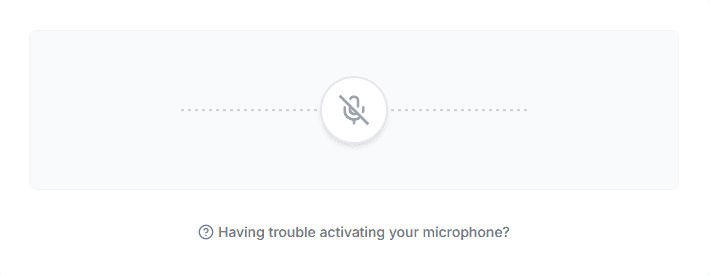
This provides optimal audio quality and reduces the need for extensive post-production edits.
Start Recording
With your app set up and environment ready, hit the record button.
Speak naturally and confidently, keeping a consistent distance from the mic. To ensure the best sound, test your setup first to check levels and eliminate issues before you start. Set your iPhone to Airplane Mode to prevent interruptions from calls or notifications.
Avoid unnecessary noise, stay still and minimize movement. If you make a mistake, pause and re-record the section.
Don’t worry about minor errors. You can always refine the audio in post-production.
Edit Your Recording
After recording the podcast on your iPhone, it’s time to refine your audio. Use your app’s built-in tools to trim unwanted sections, adjust volume levels, and smooth out any rough spots. Focus on removing pauses, unnecessary filler, or background noise.
- Trim awkward silences: Remove long pauses or dead air.
- Adjust audio levels: Balance volume for consistency.
- Enhance clarity: Boost mid and high frequencies to make speech clearer.
GarageBand, for instance, lets you add effects and balance audio levels easily. Consider adding music or sound effects from GarageBand’s library to enhance your podcast.
For a polished finish, Cleanvoice can automatically clean up your audio by removing stutters, filler words, and noise, giving it a professional edge.
Enhance with Cleanvoice
After editing, upload your audio to Cleanvoice for final refinement. Our AI-powered tools automatically remove filler words, stutters, mouth sounds, and background noise, ensuring a professional-grade sound.
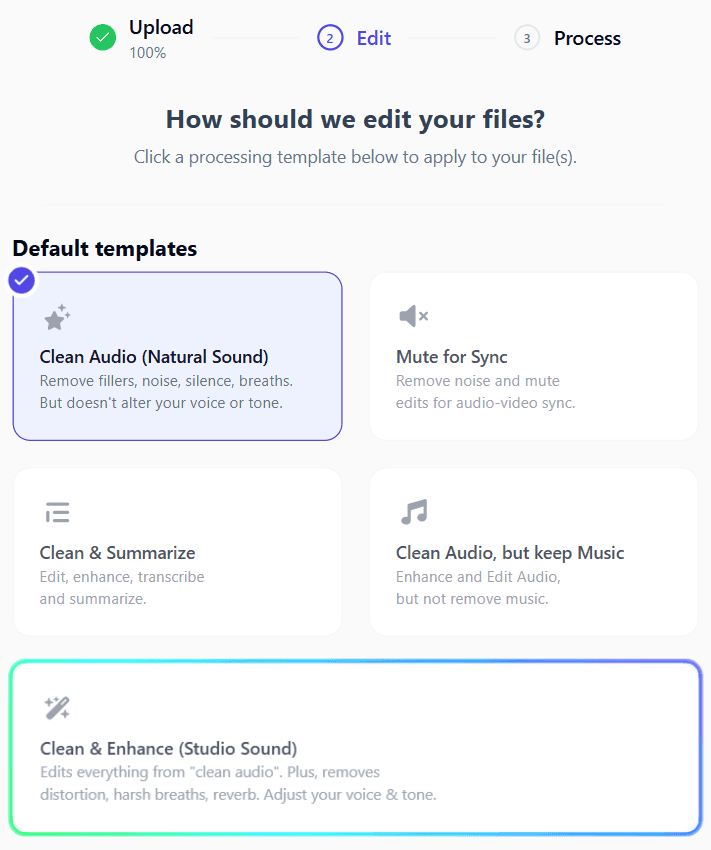
- Filler word removal: Cuts unnecessary words like “um” or “uh.”
- Noise cancellation: Eliminates background hum or interference.
- Stutter removal: Smoothens awkward pauses or repeated phrases.
- Breath removal: Removes or mutes harsh breaths, with natural cuts.
- Echo and reverb removal: Removes heavy reverb from your audio and gives you clear speech.
Additionally, our Audio Enhancer enhances your audio quality and voice effortlessly. In just three clicks, it removes background noise, distortion, echo, breath sounds, and white noise, while normalizing and equalizing sound levels to achieve a polished, studio-like finish.
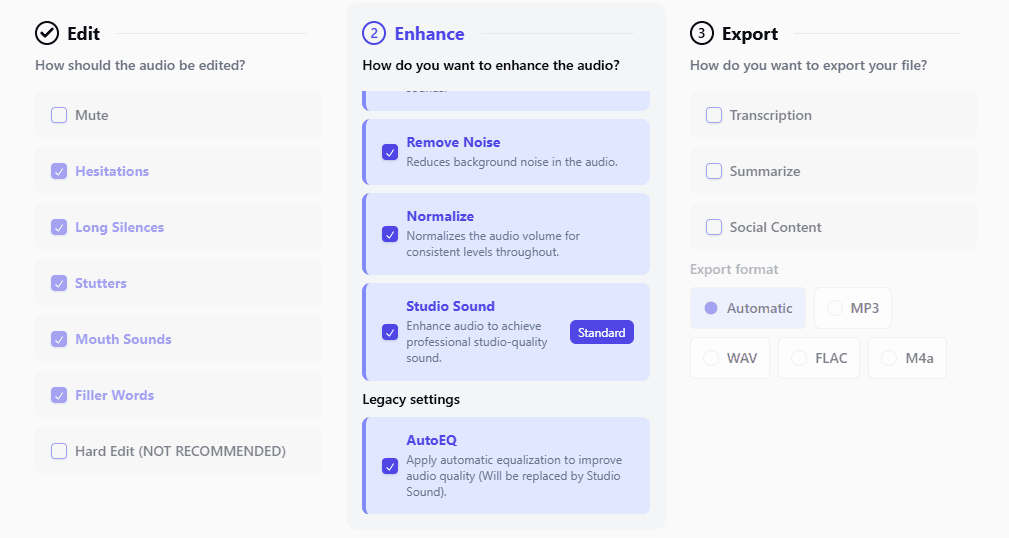
This process can reduce the time you spend editing manually, helping you get audio that’s cleaner with less front-end effort. The result is clear, crisp audio that sounds professional, even if recorded on your phone.
Export and Publish
Once satisfied with the final version of your podcast, export it in the desired format (typically MP3 or WAV). Make sure it’s optimized for your podcast platform by checking file size and quality settings.
- Add metadata: Include episode title, description, and keywords to optimize your podcast for searchability.
- Upload to hosting platform: Publish and schedule your podcast for release.
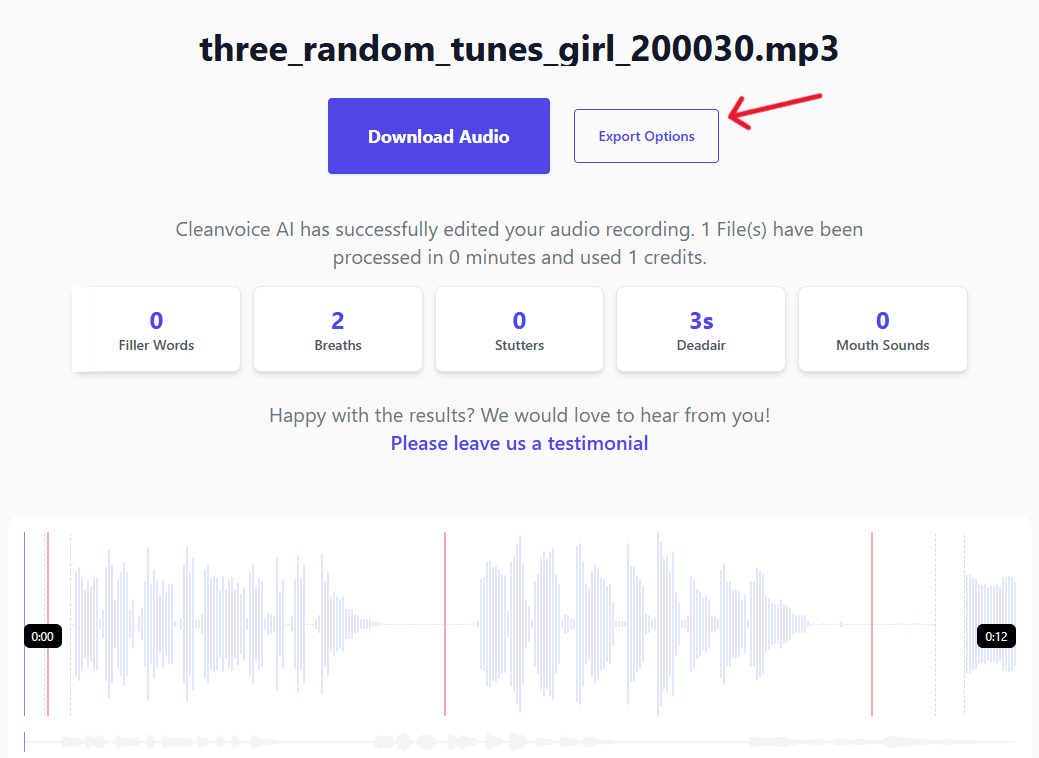
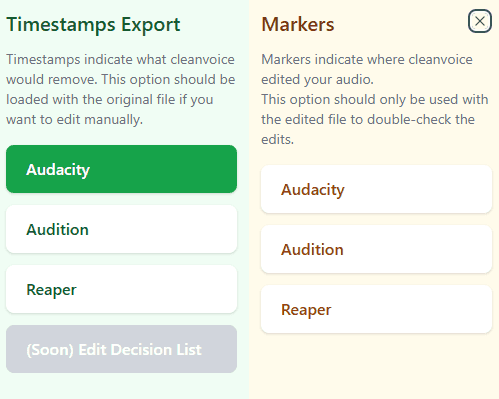
You can also export from Cleanvoice directly to your preferred DAW if you need further refinement:
Method 2: Recording a Podcast on Your Android Phone
Choose a High-Quality Recording App
Selecting a reliable recording app is critical to achieving high-quality audio. For Android, options like Easy Voice Recorder offer easy interfaces and multi-format support. Such apps provide essential features like adjustable recording quality and easy editing.
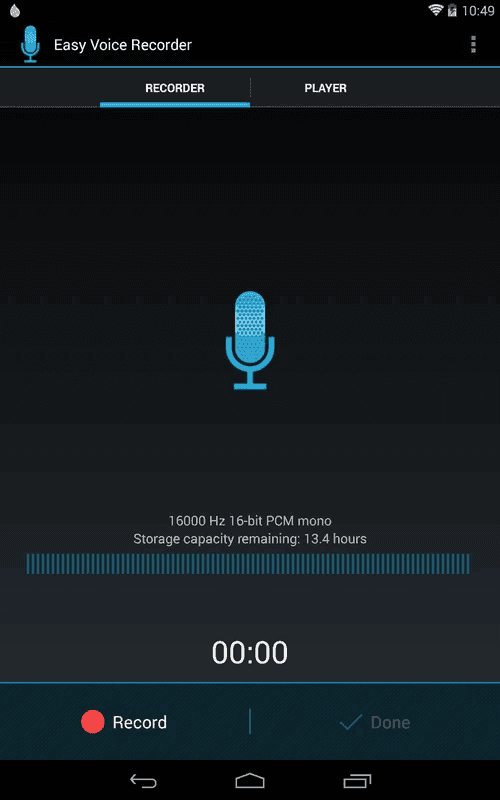
- Adjustable settings: Fine-tune audio quality for clarity.
- Multi-format support: Record in MP3, WAV, and more.
- Export options: Easy export to podcast platforms.
With a solid app, you get a smoother workflow. If you need to clean up the audio afterward, Cleanvoice AI can help remove unwanted background noise, filler words, and other distractions, improving sound quality.
Set Up Your Recording Environment
Choose a quiet space for recording to reduce background interference. The more controlled the space, the better the audio quality.
- Use soft materials: Curtains, carpets, and pillows can absorb sound and minimize echo.
- Position yourself properly: Keep the mic at an optimal distance, usually 6–12 inches from your mouth.
- Limit distractions: Turn off noisy devices and inform others that you’re recording.
And in case your podcast does end up with unwanted sound or noise, our Echo & Reverb Remover is there to help. This feature uses AI to eliminate unwanted room reflections and echo from audio or video recordings.
This is ideal if you lack soundproofed environments, so that you can achieve studio-quality sound without complex setups or extensive editing.
Record Your Podcast
Open your chosen recording app and start a new session. Speak naturally and maintain consistent mic distance for balanced audio. Keep a steady pace and clear diction throughout.
Avoid excessive pauses, as they can disrupt the flow.
- **Monitor levels: Watch the audio levels to prevent clipping.
- **Ensure clear speech: Avoid mumbling or speaking too fast.
- **Record in segments: Break your podcast into manageable chunks to ease editing.
Edit Your Recording Using Cleanvoice
Once you've completed your recording, it’s time to fine-tune your audio.
Upload your raw file to Cleanvoice AI for automatic post-production editing. Our tool uses advanced algorithms to remove common podcast imperfections like filler words, stutters, mouth sounds, and background noise.
- Noise cancellation: Cleanvoice removes unwanted background hums and distractions.
- Filler word removal: Automatically eliminates “um,” “uh,” and other unnecessary words.
- Stutter smoothing: Cleans up repeated phrases and awkward pauses.
- Audio balancing: Adjusts volume levels for consistent sound quality.
In addition to our Audio Enhancer feature previously mentioned, our Audio Editing API helps developers automate audio enhancement tasks like removing background noise, filler words, and mouth sounds through simple API calls.
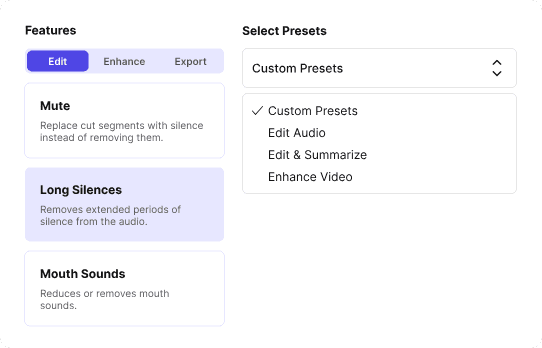
It offers customizable templates, timeline exports, and supports multiple languages, making it ideal for integrating professional audio editing into applications.
Using Cleanvoice reduces the time spent on manual editing. Our tool’s precision gives you a professional-level final product, leaving you with clean, clear audio ready for publishing.
This streamlines your workflow, so that you can focus more on creating new podcasts.
Export and Publish Your Episode
Once you’ve finished editing, export your podcast in a format compatible with your hosting platform, typically MP3 or WAV.
- Check settings: Make sure the file size and audio quality meet platform requirements.
- Add metadata: Include episode title, description, and relevant tags to improve discoverability.
- Finalize export: Double-check for any remaining issues before publishing.
You can also export your audio from Cleanvoice directly to your preferred DAW for additional refinement.
After exporting, upload your episode to your hosting platform. From there, it’s ready for distribution.
Best Practices for Recording a Podcast on Your Phone
Maintain Consistent Audio Levels
Consistency in audio levels throughout your podcast is important
Large fluctuations can make listening uncomfortable and need extensive editing. Always aim for a balanced sound that stays within a steady range.
During recording, monitor your levels in real time, keeping them out of the red zone to avoid distortion. You can adjust levels in your recording app, but it’s best to get it right while recording.
Use Short Recording Segments
Breaking your podcast into smaller segments not only makes it easier to manage but also allows for quicker edits.
Recording in smaller chunks can help avoid long-winded mistakes or awkward pauses. Also, it makes it easier to focus on one topic at a time, improving the flow of the content.
At Cleanvoice, our Merge Audio tool can help you easily combine multiple segments (audio files) into a single track. The process is quick and simple, supporting various formats like MP3, WAV, and FLAC, ensuring a seamless and polished final product.
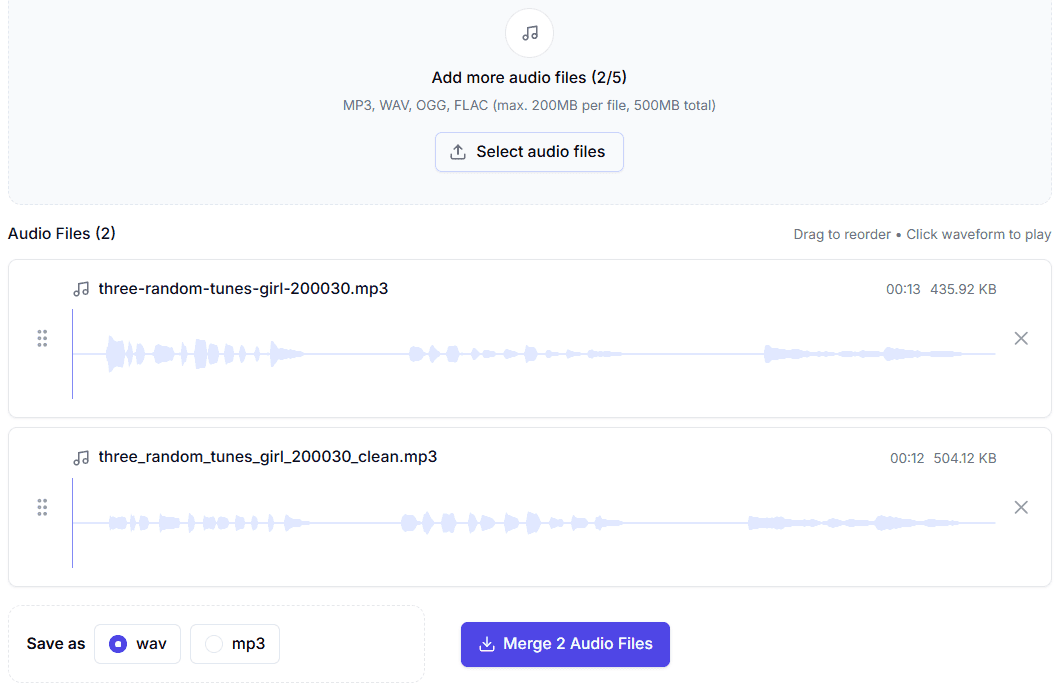
This process can speed up your editing workflow and allow you to fine-tune each part of your episode.
Optimize Mic Placement
Mic placement plays a huge role in audio quality.
Position your microphone at a consistent distance (usually 6-12 inches) from your mouth to avoid fluctuations in volume or distortion. Keep the mic at an angle to prevent plosives, which can cause harsh, popping sounds when pronouncing “P” or “B” sounds.
If you're using an external mic, position it to capture clear, natural audio without background interference.
Minimize Editing Time with Cleanvoice
Streamline your post-production process with our platform.
By automating noise reduction, filler word removal, and stutter correction, you can eliminate hours of manual editing. Cleanvoice’s real-time AI capabilities significantly reduce editing time, helping you focus on more creative aspects of podcasting.
The AI automatically smooths out awkward pauses, removes unwanted background noise, and ensures consistency across segments. This is especially useful when dealing with longer podcasts or tight deadlines.
Proof Your Audio in Context
Before finalizing your episode, listen to your audio in different environments and devices.
Play your podcast through headphones, computer speakers, and your phone to ensure it translates well across platforms. Listening in different conditions helps catch subtle issues like imbalanced sound, muffled voices, or distractions you may have missed.
Make Your Podcasting Process Easier with Cleanvoice
Recording a podcast on your phone is a convenient and accessible way to create content. By following the right steps, you can get high-quality, professional results.
At Cleanvoice, we streamline editing with AI-powered tools that remove unwanted noise, filler words, and stutters, saving you time and improving your audio’s overall quality. Be it a seasoned podcaster or someone just starting, Cleanvoice enhances the entire workflow and the audio.