Our Step-by-Step Guide on How to Transcribe Any Video Recording to Text

Quick Summary
We cover how to transcribe video to text using Cleanvoice's AI podcast transcription feature, plus a second method using Smart Noter AI.
Upload your video, enable transcription, and get a clean, accurate transcript in minutes. Works for podcasts, interviews, Zoom recordings, and any video content you want to repurpose or make searchable.
Looking for a Faster Way to Transcribe Your Video Recordings into Text?
You spent time recording a solid episode or video. The content is good, the conversation went well, and now you want it to reach more listeners.
A transcript opens up everything. Show notes, social posts, a blog article, captions, and searchable content for your website. The problem is that most people either skip transcription entirely because it feels like extra work, or they sit there manually typing out what they said.
Neither of those is the right answer. In this Cleanvoice guide, we'll show you exactly how to transcribe video to text using AI so the whole process takes minutes, not hours.
But first...
Why Listen to Us?
Our AI-powered tool is trusted by 15,000+ podcasters to clean and transcribe video in minutes, removing filler words, background noise, reverb, and dead air while generating accurate transcripts with speaker labels and timestamps.
Cleanvoice handles the technical work automatically so creators can focus on content, not post-production. We also offer API and SDK for teams and developers who process video at scale.


What Is Video Transcription?
Video transcription is the process of converting the spoken audio in a video into written text. The result is a readable document, that contains what was said, who said it, and when.
A good transcript does more than capture words. It includes timestamps so you can quickly find and jump to specific moments of your podcast. And speaker labels, so you know which speaker said what, in a multi-person recording.
It should be accurate enough that the text is useful without requiring an hour of manual corrections.
Transcription used to mean hiring someone to listen and type everything out. A professional transcriptionist takes roughly four hours to transcribe one hour of video audio. AI has changed that equation completely.
Modern AI transcription tools process an hour of video in minutes, and accuracy has improved to the point where most podcasters need only a light review pass before the transcript is ready to use.
The one thing that still matters a lot is the quality of the source audio. A clean recording with minimal background noise produces a significantly more accurate transcript than one with wind rumble, echo, or overlapping speakers.
That is where cleaning your video before transcribing makes a real difference, and it is something most transcription guides never mention.
Why Should You Transcribe Your Video Recording?
- Improved accessibility: A transcript makes your content available to people who are deaf or hard of hearing, and to anyone who prefers reading over watching. It is also useful for viewers in noisy environments who cannot play audio out loud.
- SEO benefits: Modern search engines index video metadata, captions, and structured data. Publishing a transcript improves keyword relevance, visibility, and ranking, while chapter markers or timestamps help highlight relevant sections for better search results.
- Content repurposing: A single transcript becomes the raw material for show notes, a blog post, social media quotes, an email newsletter, and caption files. One recording, multiple content outputs, without starting from scratch each time.
- Easier editing**: When you can read your episode as text, weak sections, repeated ideas, and rambling tangents become much easier to spot and cut.
- Easier reference: A transcript lets you search for specific moments, quotes, or topics across your entire library of recordings without rewatching anything.
How to Transcribe Video to Text
Method 1: Transcribe Video to Text Using Cleanvoice
Step 1: Upload Your Video File
Sign up for free (no credit card needed). You’ll get 30 minutes of free credits to try it out.
- On the upload screen, drag and drop your video file onto the upload area, or click browse files to import from your device, Google Drive, or a link.

- Once your file appears, click the green "Upload 1 file" button

We support multiple file formats (like .mp3, .wav, .m4a, .flac, and .mp4 and more). You can also upload multiple files at once, for batch processing or multitrack editing.
Step 2: Choose Your Processing Template
Now that your file is uploaded, select how to process it.
- For your usecase here, the default template "Enhance, Edit and Summarize" is the best starting point for transcription. It combines audio cleanup and transcription in one pass.


-
If you want more control, click on "Create custom template" and configure these three categories:
-
Edit:
- Enable Filler Words, Long Silences, Mouth Sounds, and Stutters. Removing these before transcription means your transcript will be cleaner and need less manual editing afterward.

- Enhance:
- Turn on Remove Noise, Normalize, and Studio Sound.
- Cleaner vocals produces more accurate transcription. Choose the Nightly setting under Studio Sound for more balanced result.


- Export:
- This is where transcription lives. Select Transcription to generate the text output. Enable Summarize and Social Content here too, if you want those outputs from the same file.
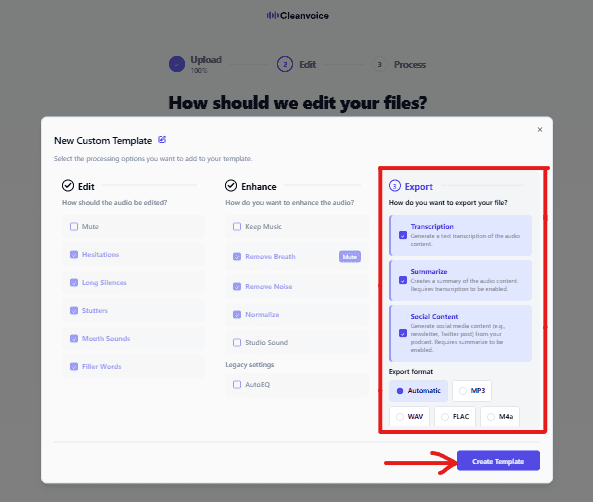
- Click Create Template to save and move forward.
Step 3: Start Processing
- Click Start Processing. Our AI will clean the audio, remove unwanted sounds, and transcribe the spoken content into text with speaker labels and timestamps.

This typically takes around 5-10 minutes (for an hour of video), depending on the file's length.

Step 4: Review Your Transcript
- Once processing is complete, you can see a full transcript with timestamped text and speaker labels alongside a summary of edits made.


- Click through the transcript while the audio plays.

- Rename speakers from generic labels like SPEAKER_01 to actual names, you can also edit the transcript right away.
Step 5: Export Your Transcript
Click Export and choose your format:

- Text Only for a basic transcript document
- Text with Speaker Labels and Timestamps for structured, detailed output
- SRT or VTT for video subtitle files you can upload to YouTube or LinkedIn
- TTML for Adobe Premiere compatibility
Download your file and use it for editing, publishing, or repurposing into other content formats.
Method 2: Transcribe Video to Text Using Smart Noter AI
Step 1: Create Your Account and Upload Your File
Head to Smart Noter AI and sign up for a free account. Once you are in the dashboard, click Transcribe and select your video file to upload.

Smart Noter supports common formats including MP4, MOV, and MP3, so most recordings will upload without any conversion needed.
Step 2: Select Your Language and Start Transcription
Before processing begins, select the spoken language from the dropdown.

Once your language is set, click Transcribe to start the process. Smart Noter will process your file and return a transcript with timestamps and speaker labels.

Step 3: Review and Edit the Transcript
Once transcription is complete, Smart Noter opens the transcript in an inline editor alongside your audio. Click any line of text to jump to that point in the recording and listen back. Correct misheard words, adjust speaker labels, and clean up any sections where background noise affects accuracy.

Pay particular attention to proper nouns, guest names, and any technical or industry-specific terms. These are the areas where AI transcription most commonly needs a manual correction.
Step 4: Export Your Transcript
When you are satisfied with the transcript, Create a Shareable link and choose your preferred format.

Smart Noter supports TXT, DOCX, SRT, and PDF exports.

Choose the format that fits your workflow, whether that is a document to edit further or a subtitle file to upload directly to your video platform.
Best Practices for Better Transcription Accuracy
Clean Your Audio Before Transcribing
AI transcription tools work by analyzing speech frequencies. Background noise, echo, wind rumble, and overlapping speakers all interfere with the AI's ability to distinguish words accurately.
A recording with significant background noise will produce a less accurate transcript and more manual correction time.
Running your audio through background noise removal before transcribing is one of the most effective steps you can take to improve transcript quality, especially for recordings made outdoors, in reverberant rooms, or over video calls with inconsistent connection quality.
Remove Filler Words Before You Export
If your transcript includes every "um," "uh," "you know," and false start, the text is hard to read and time-consuming to clean manually. Removing filler words and mouth sounds before transcription means the output is closer to publish-ready from the start.
This is why running sound cleanup and transcription in the same workflow saves significantly more time than using two separate tools. This matters most for interview-style episodes where multiple speakers talk over each other or trail off mid-sentence.
Set the Correct Language Before Processing
Always specify the correct language and dialect before processing begins. A tool defaulting to the wrong regional variant will produce more errors with accents, spelling, and punctuation.
If your recording contains multiple languages, check whether your tool supports multilingual transcription or whether you need to process segments separately. Some tools also let you add a custom vocabulary list for brand names and technical terms, which is worth using if available.
Review in Context, Not Word by Word
When reviewing your transcript, do not read it word by word from start to finish.
Play sections of the video and follow along in the text simultaneously. Hearing the audio while reading makes it much faster to catch misheard words, particularly proper nouns, technical terms, and guest names the AI had no prior reference for.
A single focused review pass done this way is faster and more accurate than two separate read-throughs.
Keep Your Source File
Always save the original unedited video file before any processing. If you want to generate a new transcript later with different settings or share the raw recording with a collaborator, having the unprocessed source file means you can start fresh without any quality loss from previous exports.
Cloud storage with automatic backup is the simplest way to make this a habit.
Turn Every Video Recording Into Polished Content with Cleanvoice
Transcribing video to text manually is slow, and using a basic tool that skips sound cleanup means spending more time correcting errors than you save.
With Cleanvoice, you get audio enhancement, noise removal, filler word removal, reverb and breath removal, normalization, equalization, and transcription. All in one upload. So, your transcript is cleaner and more accurate from the start.
Most creators who start transcribing consistently find that it changes how they think about their content. A transcript makes your episode searchable, shareable, and easier to repurpose into show notes, social posts, or a full blog article without starting from scratch.
It also gives you something most people overlook: a written record of your own voice that you can read back, learn from, and use to plan better episodes next time.
The more recordings you transcribe, the more useful your back catalogue becomes. Specific moments, quotes, and topics become searchable in seconds rather than buried in hours of video nobody will rewatch.
That is the real value of building a transcription habit into your workflow from the start, not just doing it occasionally when you remember.
Transcribe quickly with Cleanvoice today so you have time for more outdoor video shoots.


