Here’s How to Edit Audio Files on iPhone (We Cover Two Methods)
Quick Summary
This guide shows you how to edit audio files on iPhone using two methods: Cleanvoice for fast, AI-powered audio cleanup and GarageBand for manual, hands-on edits. Learn how to trim, enhance, remove noise, and export professional-quality audio directly from your iPhone.
Trying to Edit Audio Files on Your iPhone Without Headaches?
You record audio on your iPhone because it’s quick and convenient, but when it’s time to edit, things get frustrating fast. You might only want to trim a clip, remove awkward pauses, or clean up background noise, yet most options either force you onto a desktop or bury simple edits under complicated tools.
You don’t need a full studio setup to get clean, professional audio from your iPhone. In this Cleanvoice article, we’ll show you two reliable ways to edit audio files on iPhone so you can choose the method that fits your workflow.
But first…
Why Listen to Us?
At Cleanvoice, we’ve helped 15,000+ podcasters and top brands streamline their audio editing with AI-powered tools. Our experience in podcast and audio editing means we know what works, what saves time, and what delivers studio-quality results. This expertise gives us the insight to guide you through the best ways to edit audio on iPhone efficiently and effectively.
Why Edit Audio Files Directly on IPhone?
Editing audio directly on your iPhone gives you control and flexibility over your recordings, right from the palm of your hand. Here’s why it makes sense:
- Instant On-the-Go Edits: Make quick adjustments immediately after recording, whether trimming a voice memo or removing unwanted noise, without waiting to transfer files to a computer.
- Direct Access to iPhone Microphone Features: Editing directly on your iPhone lets you leverage built-in microphone enhancements, spatial audio, and noise reduction settings in real time, giving your recordings a professional touch without extra equipment.
- Preserve Original Quality: Editing on iPhone avoids multiple file conversions that can degrade audio, ensuring your recordings maintain clarity and fidelity.
- Time-Saving Automation: Modern AI-powered apps let you remove stutters, background noise, or long pauses automatically, saving hours compared to manual desktop editing.
- Perfect for Podcast & Social Media Workflows: Direct iPhone edits let you create polished content faster, ideal for sharing episodes, clips, or voiceovers immediately with your audience.
How to Edit Audio on iPhone (Step-By-Step)
Method 1: Using Cleanvoice (Recommended)
If you want fast, professional-quality audio editing on iPhone without complicated apps, Cleanvoice is your best choice. Our AI removes filler words, noise, stutters, and silences, enhances audio to studio quality, and lets you trim or merge files, plus generate transcriptions, summaries, and social content in a smooth workflow.
Here’s how to do it on your iPhone:
Step 1: Prepare Your Audio
- Make sure the audio you want to edit is saved on your iPhone, Google Drive, or hosted online.
- Check that it’s ready for editing (clear recording, no missing parts).
Step 2: Sign Up or Log In to Cleanvoice on iPhone
- Open your preferred browser and Sign up to Cleanvoice for free. You will get 30 minutes of free credits to try each feature.
- Once registered or logged in, access the Cleanvoice dashboard.


Step 3: Upload Your Audio
- Select where your audio is stored: Device, Web Link, Google Drive, or Record Audio.
- For this tutorial, we’ll select an audio file saved on the device.
- Click Upload File. You can upload multiple files using the “+” button. Cleanvoice supports batch uploads and editing.

If you only want to trim or merge audio files (for example, cutting an intro, removing the ending, or combining multiple clips), you can jump straight to Steps 7 & 9.
But if you want to remove filler words, background noise, long silences, or enhance your audio, continue till Step 5.
Step 4: Choose a Default or Custom Editing Template
Cleanvoice saves you time with both ready-made and custom templates.
- Default Templates:
- Clean All & Enhance (Studio Sound): Removes noise, fillers, silence, distortion, harsh breaths, and reverb. Enhances your voice for studio-quality results. (Recommended for most users)
- Clean Audio (Natural Sound): Removes fillers, noise, silence, and breaths but doesn’t enhance the voice. Ideal for already clear recordings.
- Enhance Audio for Video: Mutes edits, removes noise, and improves speech clarity for synced audio-video.
- Clean, Enhance & Summarize: Clean audio, enhance voice, and generate transcription, summary, and social content.
- Clean & Enhance, but Keep Music: Edit audio while preserving intro/outro music.

- Custom Template: If none of the defaults match your needs, scroll down and click “+ New Template”. You can mix and match editing options:
- Edit: Mute sections, remove hesitations or long silences
- Enhance: Apply Studio Sound, normalize volume, remove breaths, keep music
- Export: Generate transcription, summaries, or social content; select file format
- Give your custom template a name and click Save Template.
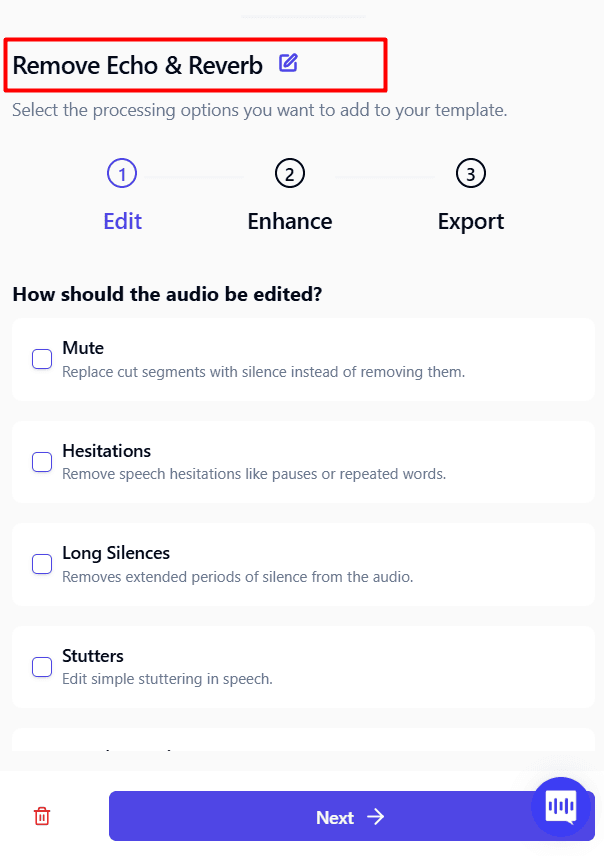
Select your chosen template (default or custom). And click “Start Processing”.

Step 5: Review & Download
- Once processing is complete, a report dashboard shows:
- Number of filler words, stutters, breaths, and dead air removed
- Playback preview and toggle to compare original vs. edited audio

- Satisfied with the edits? Click Download Audio to save it to your device.
- Or use Export Options to save in formats compatible with Audacity, Adobe Audition, or Reaper.
Step 6: Trim Your Audio
Cleanvoice also offers a 100% free audio trimmer you can use directly on your iPhone; no account required.
- On your browser visit: https://cleanvoice.ai/audio-trimmer/

- Click Select Audio and choose the file from your device.
- Once uploaded, the interface switches to an audio timeline.
- Drag the left or right handles to trim the start or end of your audio.

- Alternatively, fine-tune your trim by adjusting the “From” and “To” timestamps.
- Play the audio to preview your trim.
- Choose an export format (MP3 or WAV) and click Export Audio to download.
Step 7: Combine/Merge Multiple Audio Files
Need to merge intros, outros, or multiple recordings? Cleanvoice makes this easy. Again, no sign-up required.
- On your browser go to: https://cleanvoice.ai/merge-audio/

- Click Select Audio Files and upload the files you want to combine.
- After upload, each file appears as a stacked timeline.

- Drag timelines above or below each other to control the order of your final audio.
- Select your export format and click Merge Audio.
- Your merged file will process and download shortly.
Method 2: Using GarageBand
GarageBand is Apple’s free audio editing app for iPhone. It works well for basic trimming and manual edits, but it requires more hands-on effort and doesn’t offer automated cleaning like filler word removal or noise reduction. Still, if you prefer a native app, here’s how to edit audio using GarageBand on iPhone.
Step 1: Prepare and Open GarageBand
- Make sure your audio file is saved on your iPhone (Files app, iCloud Drive, or Downloads).
- Open the GarageBand app. If it’s not installed, download it for free from the App Store.
- GarageBand automatically switches your iPhone to landscape orientation.
- On the home screen, tap the microphone icon to start a new project and open the recording interface.

Step 2: Switch to Tracks View and Import Audio
- Tap the Tracks View icon (three broken horizontal lines) in the upper-left corner to enter timeline mode.

- Tap the Loop Browser icon (looped string) in the upper-right corner.

- Select Files → Browse items from the Files app, then locate your prepared audio file.
- Tap and hold the file, drag it into the Tracks View, and drop it onto the first track.
- Align the audio with the beginning of the timeline.

Step 3: Trim and Edit the Audio
- Tap the audio region to select it.
- Drag the left or right edges of the timeline bars to trim the beginning or end.
- Tap Play to preview your edits.
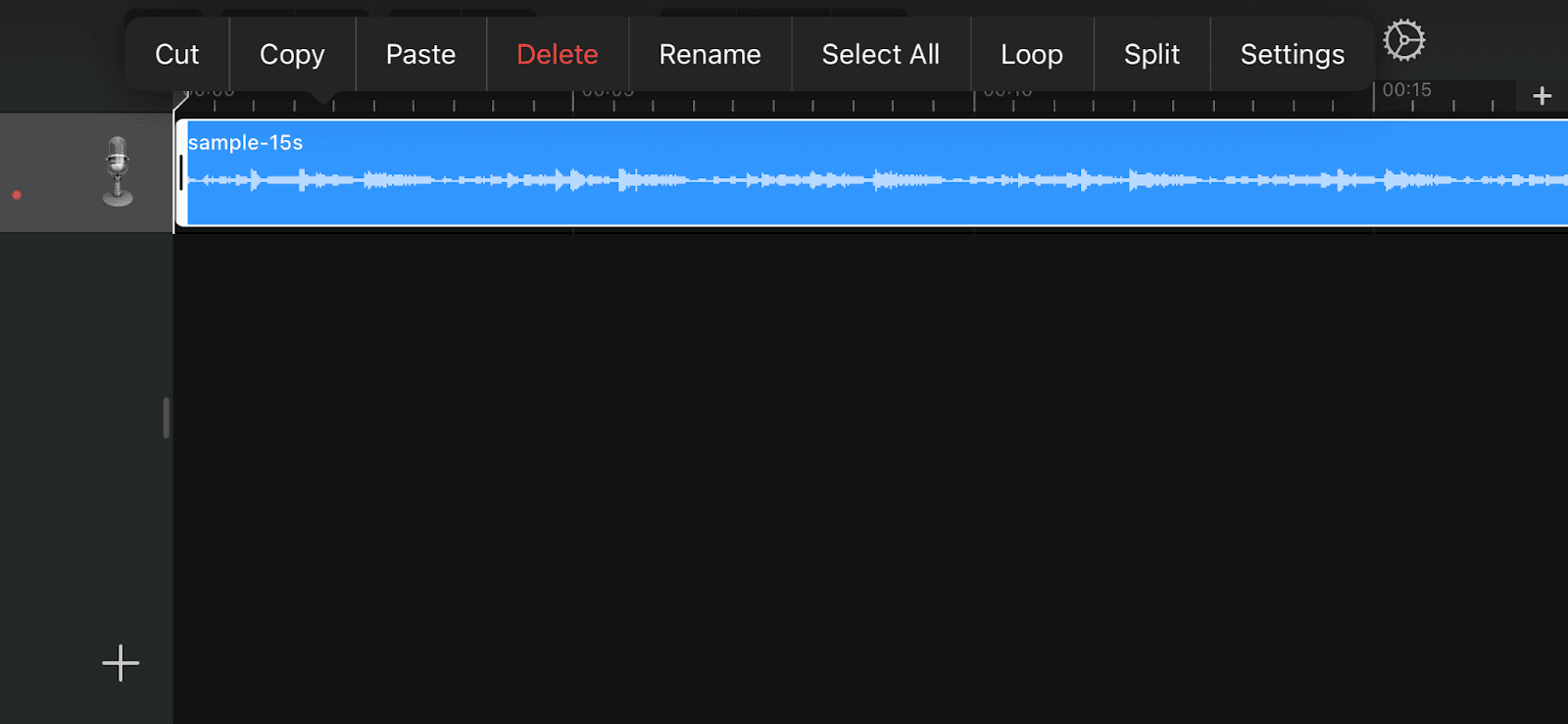
- Tap the track twice to open editing options such as Split, Cut, Copy, Delete, Rename, or Loop.
Step 4: Apply Effects (Optional)
- Tap the FX button to experiment with DJ-style effects like filters or repeaters.

- Tap the Edit icon (on the left of FX) to fine-tune audio controls, including echo, reverb, compression, treble, and bass.

Step 5: Save and Export Your Audio
- Tap the down arrow in the top-left corner and select My Songs to save your project.

- Tap and hold the file to rename it, keep it downloaded on your iPhone, or tap Share to export the audio and choose quality settings.

Edit Audio Faster on iPhone with Cleanvoice
Editing audio on iPhone puts control back in your hands, but the real challenge is doing it without turning a quick edit into a time sink.
Manual tools like GarageBand work, but trimming clips, fixing mistakes, and polishing sound can quickly become frustrating, especially when you’re working on multiple recordings or tight deadlines.
That’s where Cleanvoice fits naturally into the workflow. Instead of editing waveforms by hand, Cleanvoice uses AI to remove filler words, background noise, stutters, long pauses, and mouth sounds automatically, while also enhancing your audio to studio quality.
You can trim, merge, transcribe, summarize, and export your files in a few clicks, without learning complex editing software.
Get started with Cleanvoice today. It’s FREE.